

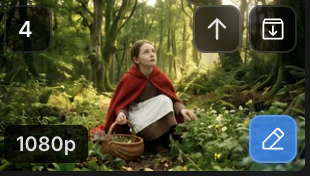
Upscale panel — four resolution options
When to reach for it
- Right before animating a promoted shot — the first frame deserves the cleanest pixels
- Final mastering for delivery, print, or large displays
- A draft image you generated cheaply that now needs to be production-grade
How to enter
The three edit modes (Edit, Upscale, Cinematic Shots) share two entry paths. Full flow is covered in Create — image editing.- Path 1 — Click the pencil icon in the bottom-right of any beat gallery tile, then pick
Upscale. - Path 2 — Click
Upscalein the mode row above the bottom panel, then select a source tile.
Four resolution options
The token cost shows next to the
Upscale button before you run. Higher resolution costs more tokens.
One image, one output
Upscale always produces one image. There is no batch size, no candidate grid — the source has already been chosen, so the only variable is target resolution.Results land in the beat gallery
The upscaled image returns to the beat gallery alongside the source. Promote with↑ to send it to the shot gallery, or archive with ↓ — identical sort to Create, Edit, and Cinematic Shots.
Next
Cinematic Shots
Nine alternative angles for the same beat.
Edit
Repaint a region or compose elements from up to three references.