

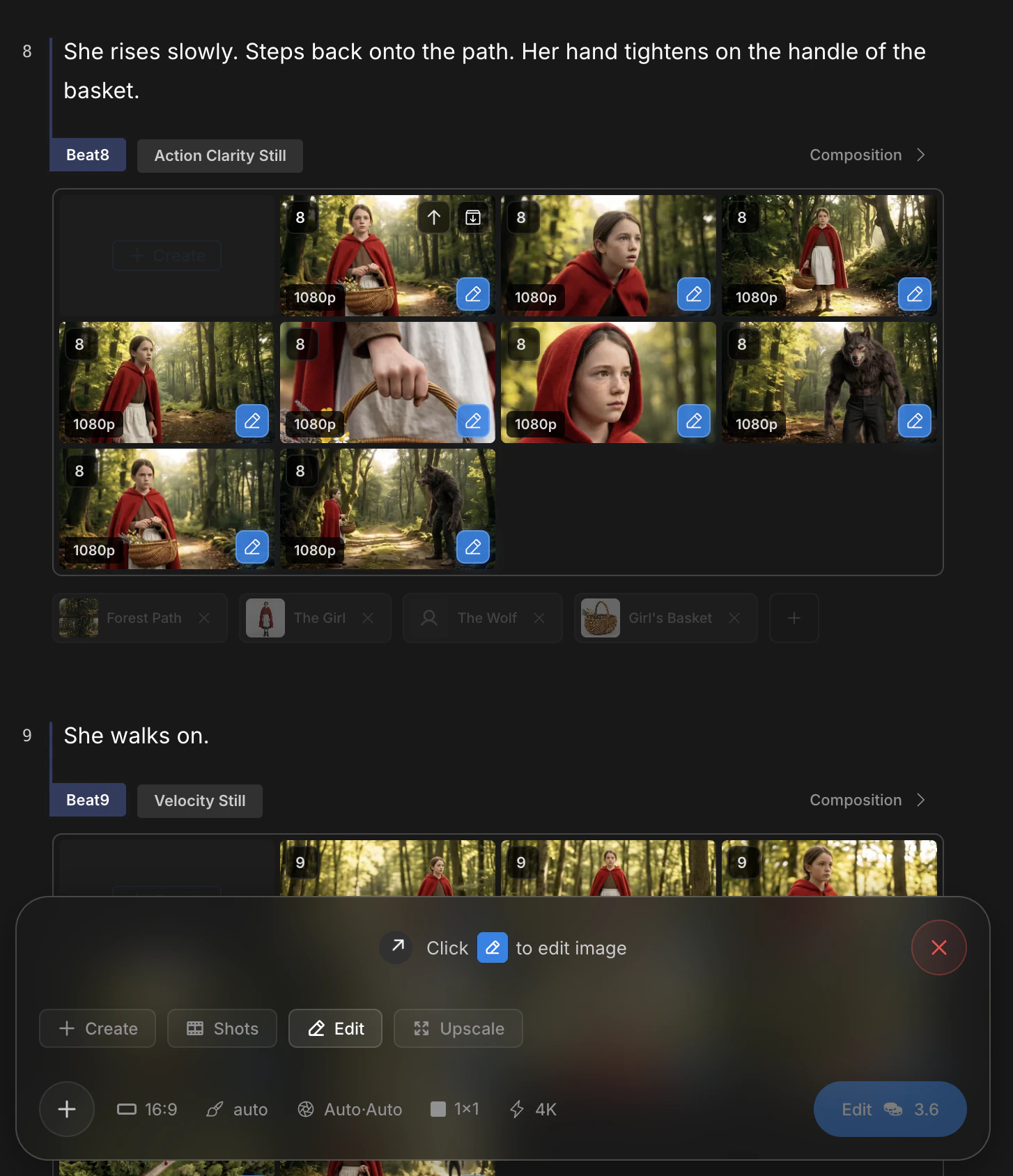
Edit panel — masking tools on the canvas, references on the side
When to reach for it
- One region of a shot is wrong — expression, pose, an object in the wrong hand
- You want to bring a character, prop, or style from a different image into this frame
- You need to add or remove a small element without losing the rest of the composition
How to enter
The three edit modes (Edit, Upscale, Cinematic Shots) share two entry paths. Full flow is covered in Create — image editing.- Path 1 — Click the pencil icon in the bottom-right of any beat gallery tile, then pick
Edit. - Path 2 — Click
Editin the mode row above the bottom panel, then select a source tile.
Two inputs you can combine
Edit accepts two kinds of input. Use either alone, or both together.
The strongest results combine both. Mask the region, attach a reference, and write a prompt like “place the reference subject here, lit to match the scene”.
Region masking
The canvas exposes three tools. Pick what fits the shape of the change.
Write the prompt below the canvas. The masked region regenerates to match the prompt while preserving the rest of the image.
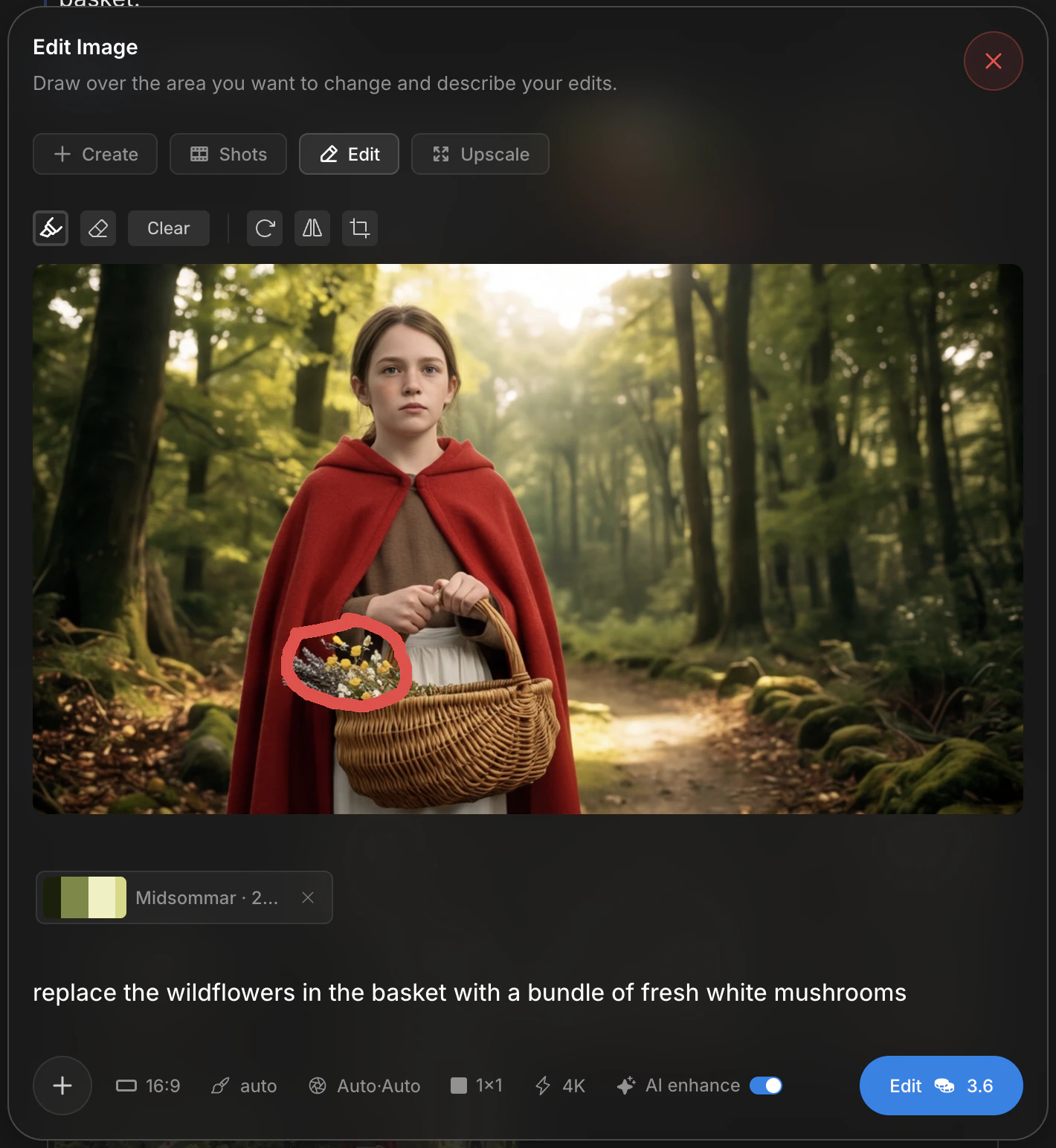
Pen mask on a region, prompt below describing the change
Reference images
Attach up to three images alongside the prompt. References can come from the beat gallery, from another asset, or from an external upload.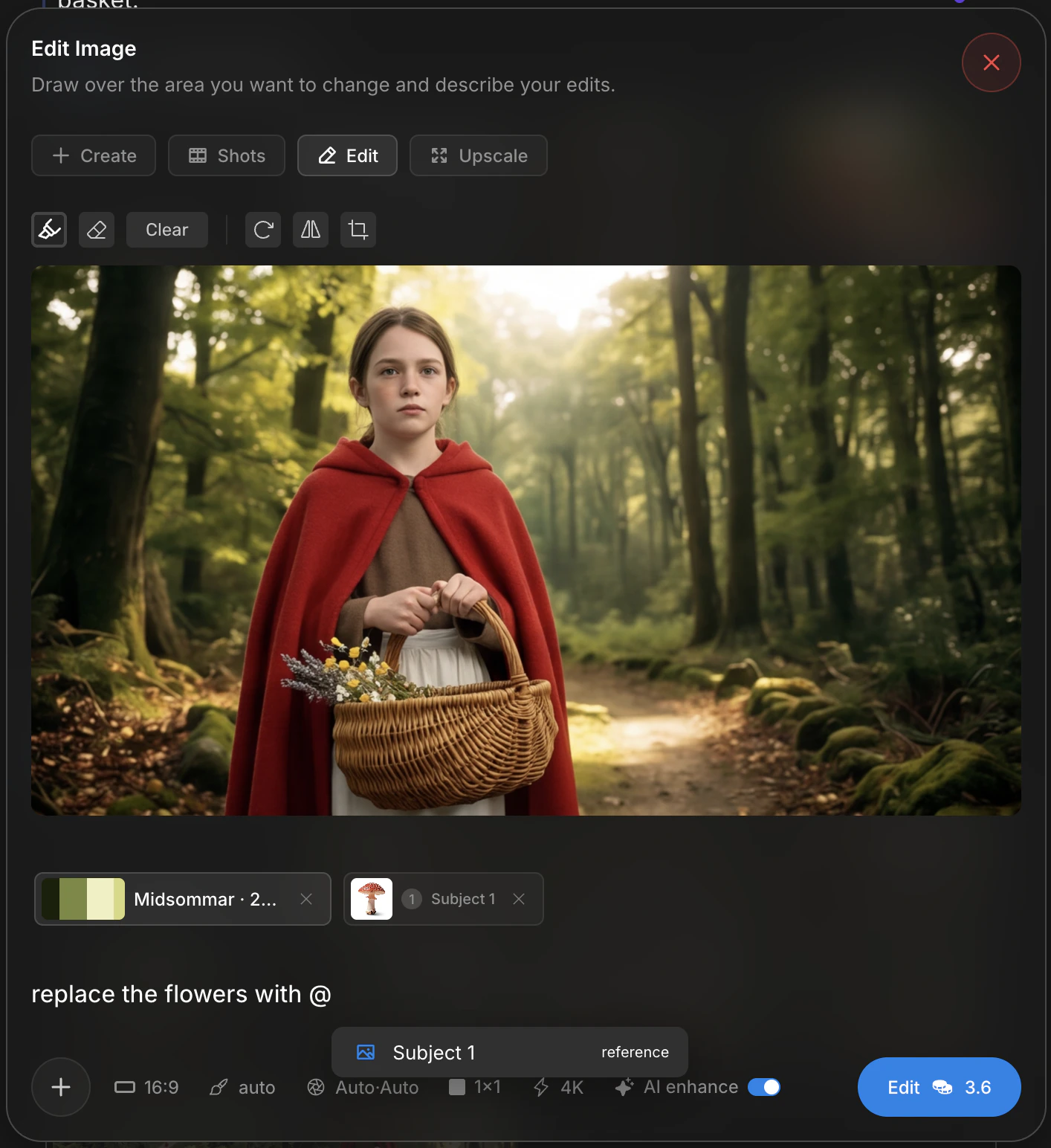
Reference attachment slots — up to three images
@ to mention a registered Character or Subject. The mention pulls in the canonical asset image without taking a reference slot.
Camera and shot settings stay attached
Edit inherits the camera and shot panel from the source frame. The settings carry through so a repaint matches the original lens, depth, and framing.
Adjust them when the repaint needs a different lens character — for example, a tighter close-up inside a wide.
Results land in the beat gallery
Edited frames flow back into the same beat gallery as the source. Promote with↑, archive with ↓ — identical sort to Create.
Choose the right tool
Next
Cinematic Shots
Nine alternative angles for the same beat.
Upscale
Push the chosen shot to 4K before animating.