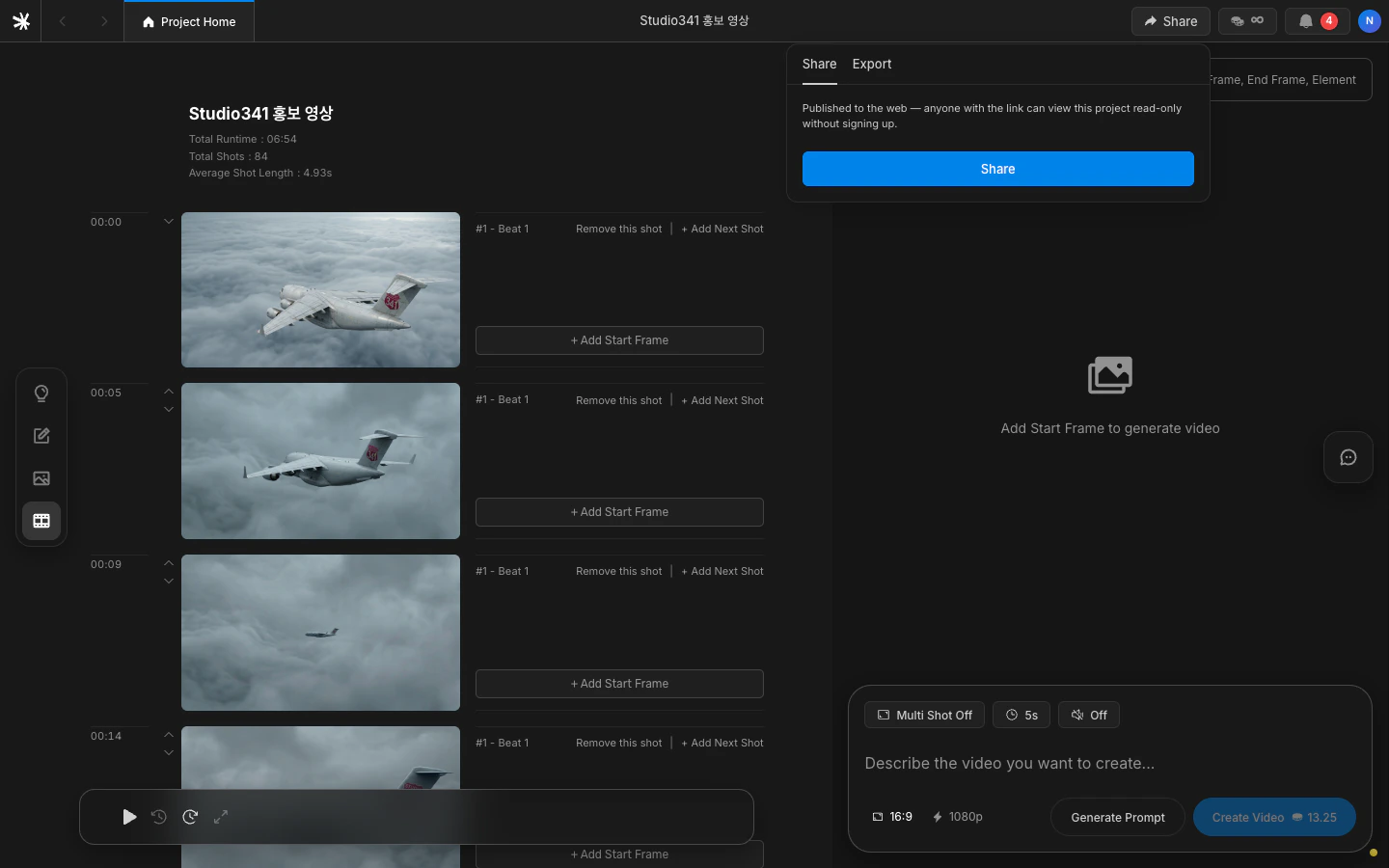
Take one line of screenplay through every stage of LTB — beat, shot, video, and share — in about 10 minutes with this end-to-end tutorial.
Write one line. Generate one shot. Animate that shot into an 8-second video. This guide walks the shortest path through LTB and ends with a public share link. Defaults are enough — no configuration needed.
LTB treats each line of your screenplay as a beat — one unit of staging. Each beat gets one shot image. Each chosen shot becomes the first frame of a video clip.
Line → Beat → Shot → Video
The first frame controls tone, composition, and identity. Spend more effort on the shot than on the prompt — animation amplifies whatever the frame already shows.
Click New project on the dashboard. Name it anything — you can rename it later.
Naming is free-form and editable later
Project deletion is permanent. LTB has no trash or restore — once you confirm, the project and every shot inside it are gone.
2
Write your first line
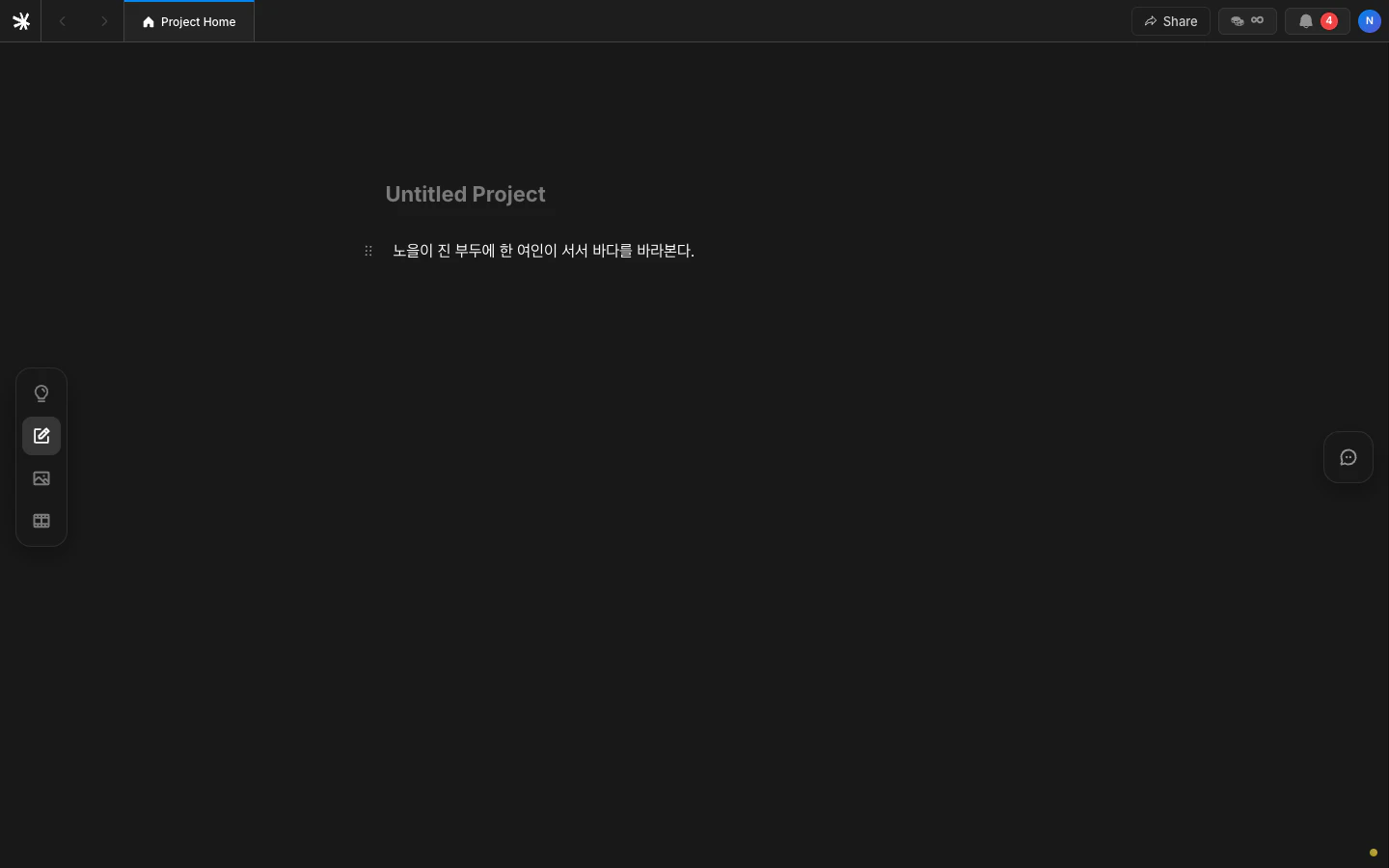
One line is enough to start.
A woman stands on the pier at sunset.
LTB reads this as one beat. One beat produces one shot. Add more lines later — each line becomes its own beat. Block syntax and @ mentions are covered in Scenario.
One line equals one beat
3
Register the people and places you want to keep consistent
Type @ inside a line to register or recall a Character or Subject. Press / and pick Background to define a place.Skipping this step is fine for a single shot. Across multiple shots, the same face will drift unless you register the character first.
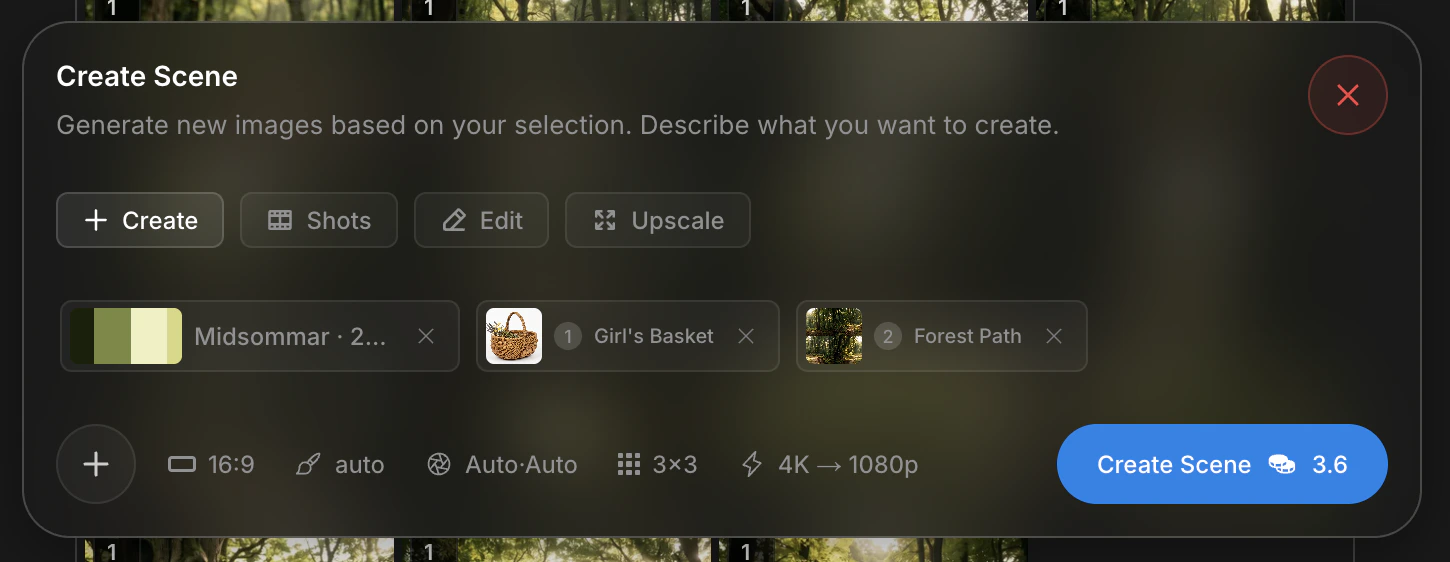
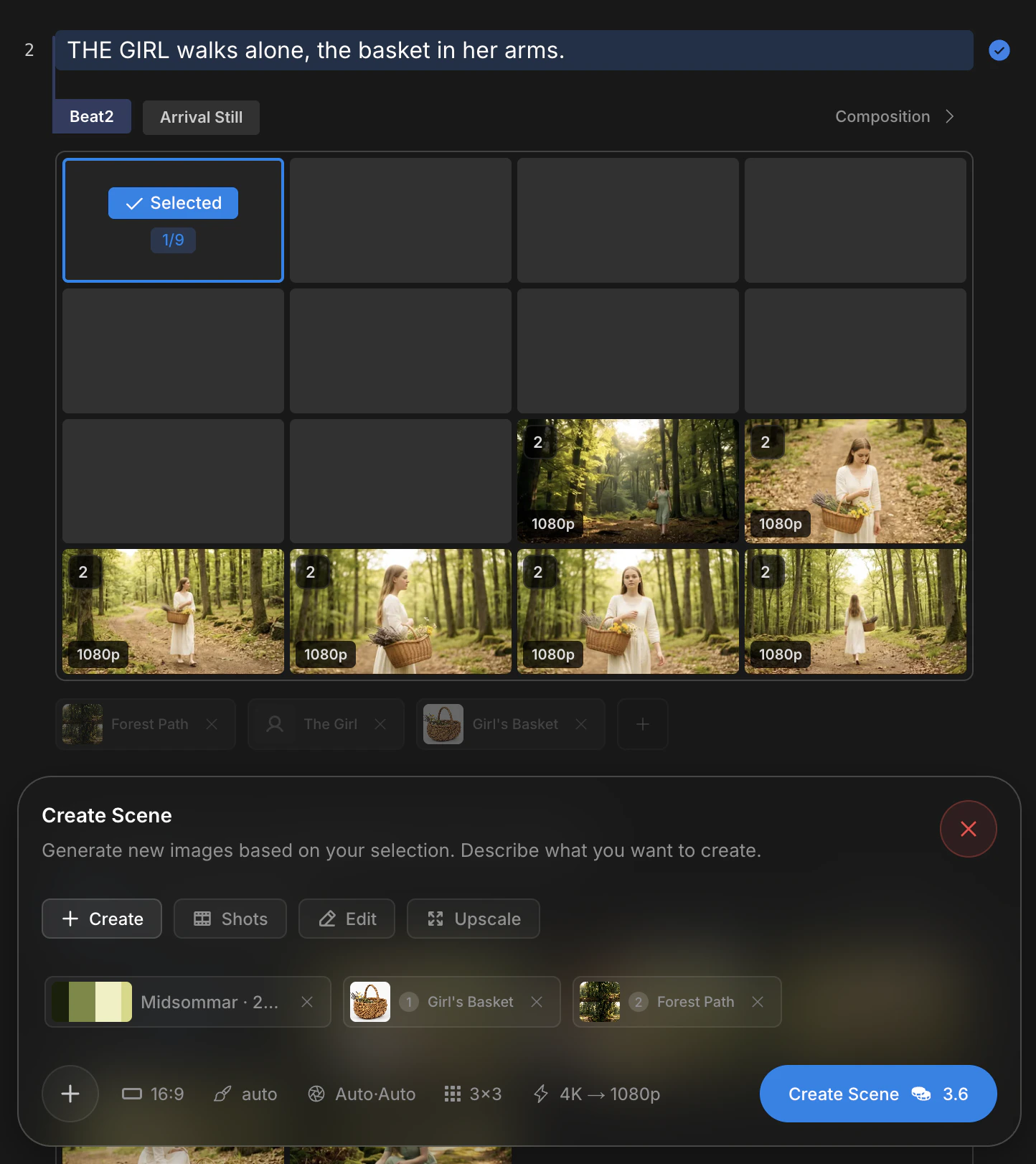
Select a beat. The generation panel opens at the bottom. Click Create to produce up to 9 candidate shots in one batch.
Create generates up to 9 candidate shots per beat
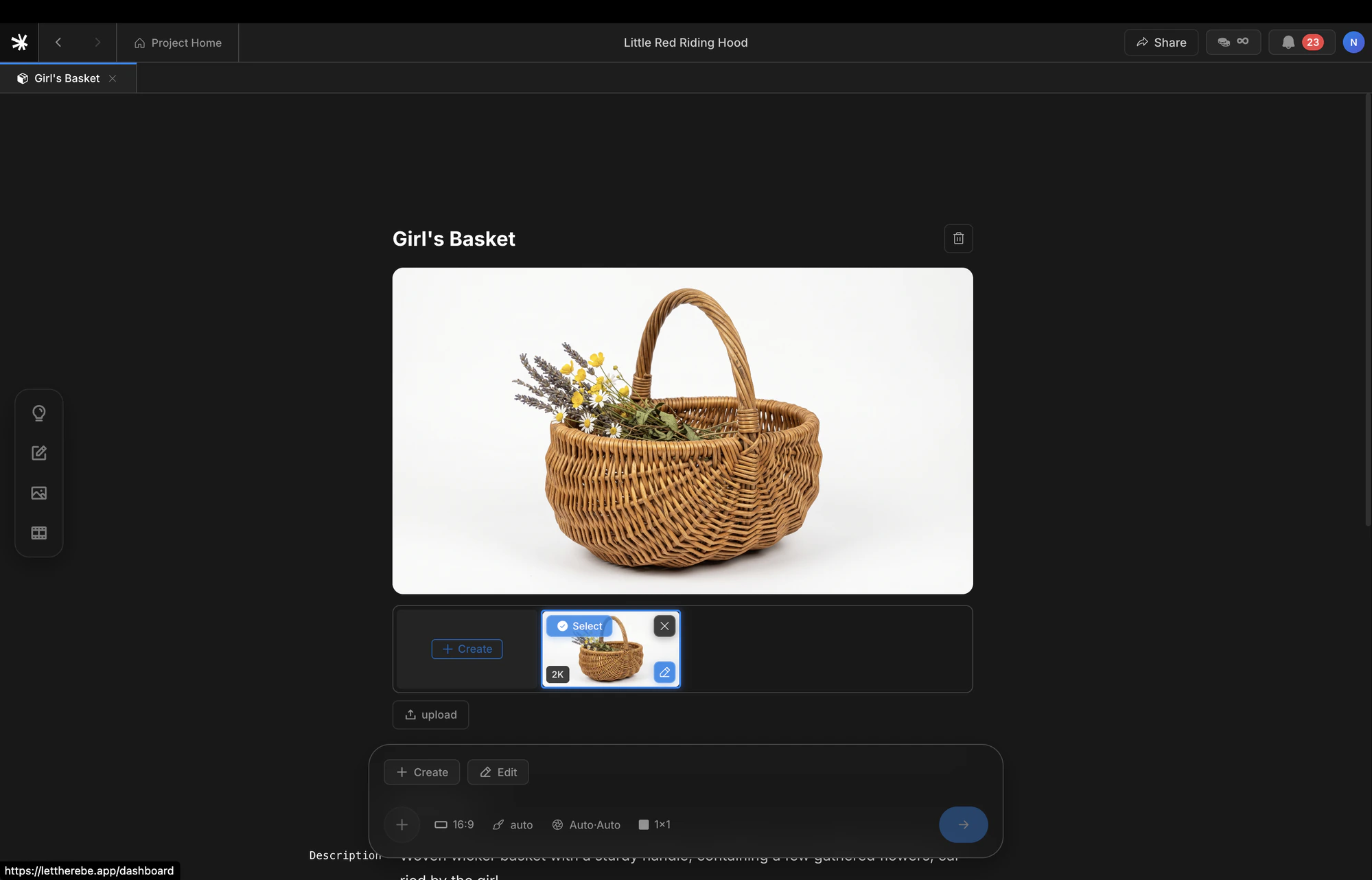
Candidates land in the beat gallery. Press ↑ on a shot to promote it to the shot gallery. Press ↓ to archive it.
↑ promotes a candidate, ↓ archives it
Promoted shots feed the video stage as first frames. Refine a promoted shot with Edit, Upscale, or Cinematic Shots before moving on.
Refine the first frame before animating. A weak frame yields a weak video, and video generation costs more tokens than a re-edit.
5
Animate the shot
Open the video panel from a promoted shot. Kling 3.0 Pro runs by default. Generation typically takes 1–3 minutes.The model takes the promoted shot as its first frame and fills in motion. Composition, lighting, and character identity carry over directly from the still.
Three issues come up most often on the first run.The Create button is gray. The line is empty or unsaved. Type one character and the autosave activates the button.The same character looks different across shots. Register the person as a Character asset, then reference them with @name in every line. Identity holds from the next generation onward.Video generation hangs past 3 minutes. Open the bell icon in the header. A failed entry means the upstream model dropped — retry from the same shot. Failed runs refund tokens automatically.