

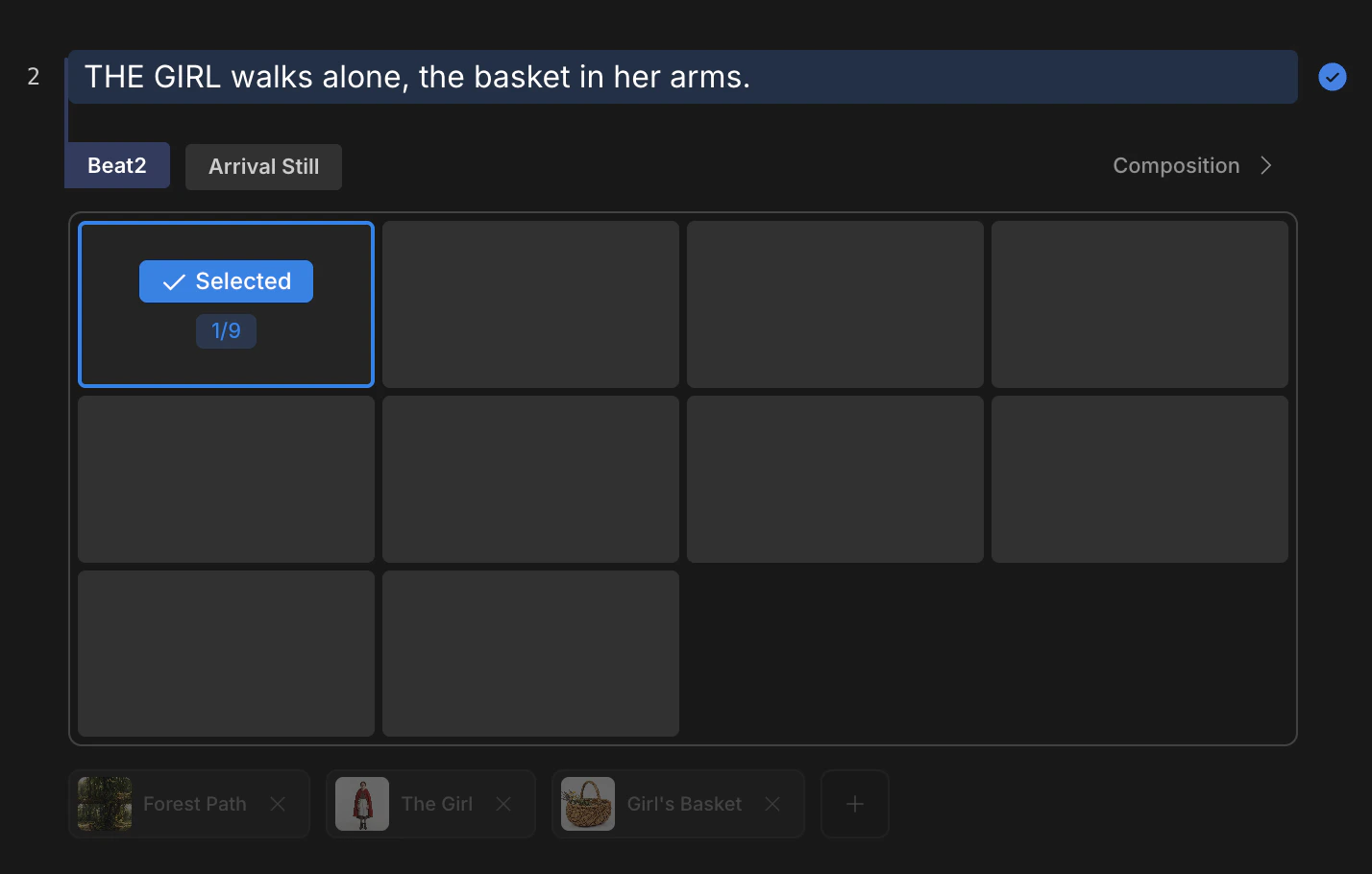
Select a beat and the generation panel opens at the bottom
The pipeline position
Create sits between Scenario and Video. The beats you wrote upstream are the input; the shots you promote here are the input to Video.Generate up to nine in one batch
The panel runs at three grid sizes. Pick the size that matches the comparison you need.3x3 is the working default for early exploration. Drop to 2x2 once the look stabilizes, then 1x1 for final retries.
Assets travel with the beat
Generation pulls in everything the beat already references. You do not re-state these in the prompt.- The Set assigned to the scene the beat belongs to
- Every Character or Subject mentioned via
@on the beat’s line
The auto-included assets only attach when they were registered via
@ in Scenario. Plain @name text without a selection from the autocomplete is treated as a regular word and does not bind. Verify each name shows up as a chip on the line before generating.Panel options
The bottom panel exposes the levers that shape the candidate frames. Generation cost is shown next to the run button — it updates as you change options.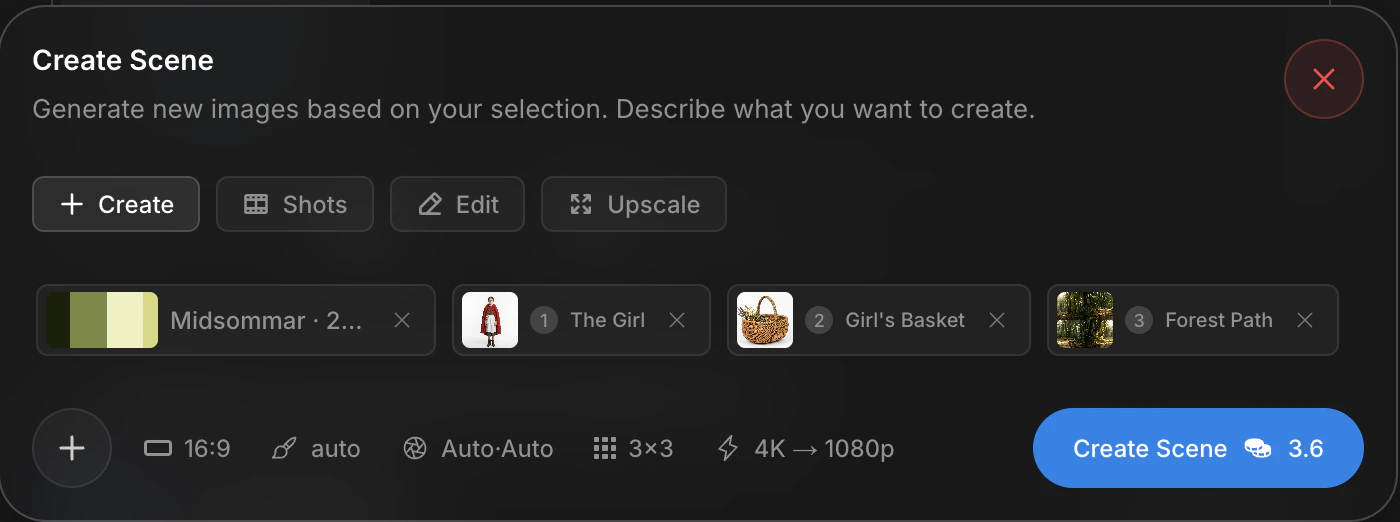
The bottom panel — grid size, ratio, resolution, and camera spec
Model and resolution drive token cost the most. See Image models for the full pricing table.
Beat gallery
Generated candidates land in the beat gallery — the panel above the prompt area, scoped to the active beat. Each tile carries two action buttons at the top right.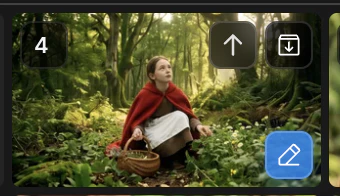
Tile actions — up arrow promotes, down arrow archives
Promote a shot
A promoted frame moves into the shot gallery, the input feed for Video. Each beat can promote as many shots as needed; three promoted shots from one beat produce three different cuts.Refine before animating
Three edit modes branch from a candidate. Hover a tile and click the pencil icon at the bottom right of the tile to open the menu, or pick a mode from the panel header.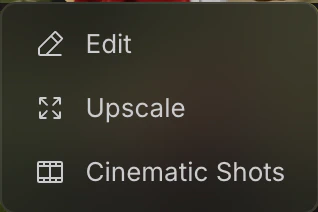
Pencil icon opens Edit · Upscale · Shots
Either entry point opens the same panel. Use the pencil menu when you start from one tile; use the panel header when you want to switch modes without selecting a new tile.
Next
Shots
Re-render the same beat in nine cinematic variations.
Edit
Repaint a region or merge elements from another shot.