

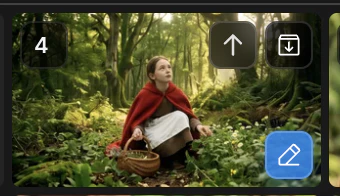
The beat-gallery edit menu — pick Cinematic Shots
When to reach for it
- A shot you like, but you want to see the same beat from another angle
- A beat that needs multiple cuts in the final video — different framings of the same moment
- Early exploration when one shot is not enough range to choose from
How to enter
The three edit modes (Edit, Upscale, Cinematic Shots) share two entry paths. Full flow is covered in Create — image editing.- Path 1 — Click the pencil icon in the bottom-right of any beat gallery tile, then pick
Cinematic Shots. - Path 2 — Click
Shotsin the mode row above the bottom panel, then select a source tile.
Nine alternative compositions
The model rebuilds the same beat with nine different camera angles and framings. Same characters, same set, same story moment — only the cinematography varies. Pick the keepers, archive the rest. You can also override the beat type before generating to shift the directorial intent. The full list of beat types is documented in Scenario.Results land in the beat gallery
The nine new images appear in the same beat gallery as the source shot. Compare side by side, then sort each one upward or downward.Other ways to refine the same shot
Cinematic Shots is one of three refinement paths. Each one takes the same input — a promoted shot — and produces a different kind of output.Next
Edit
Repaint a region or compose elements from up to three reference images.
Upscale
Push a chosen shot to 4K before animating.