> ## Documentation Index
> Fetch the complete documentation index at: https://docs.lettherebe.app/llms.txt
> Use this file to discover all available pages before exploring further.
# Scenario
> Write line by line, or let Ingest convert free text into a structured script. Either path produces beats, scenes, and registered assets.
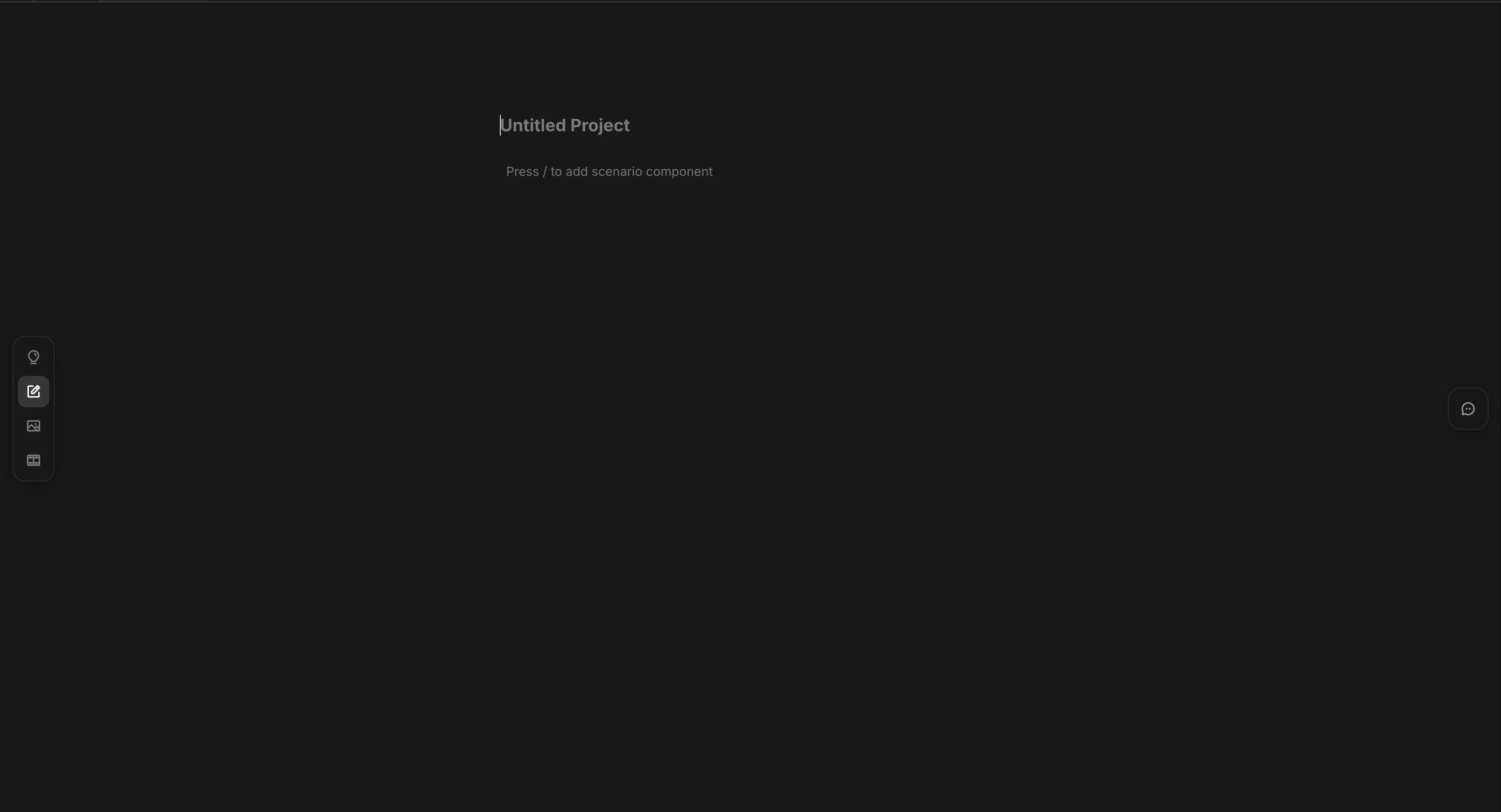
The Scenario editor is where the story takes shape. Lines become beats. Beats become shots. Backgrounds split the script into scenes. You can write directly in the format, or paste free text and let LTB convert it.
 ## Two ways to write
Pick the path that matches how you think.
Type each line in the LTB format. Use `@` for assets and `/` for blocks. Full control over structure, naming, and beat granularity.
Paste a free-text outline and click `Make scenario format & Set assets`. LTB converts blocks, registers assets, and splits scenes in one pass.
The rest of this page covers direct input first. [Ingest](#ingest) is documented at the end.
## The scenario format
Each line is a unit of staging. Empty lines separate beats. `[Background]` blocks separate scenes.
```text theme={null}
[Background] Pier at sunset
@Mio walks to the edge and watches the sea.
@Mio slowly turns around.
Mio: "Come on, you'll get drenched."
[Background] Inside the car
@Mio and @Jihwan sit across from each other.
Jihwan: "Where to?"
@Mio looks out the window.
```
That short script produces 7 beats across 2 scenes. The scene break happens where `[Background]` changes.
## Three things you want to keep consistent
When a face, prop, or location appears more than once, register it. Registered items lock identity across every shot in the project.
LTB sorts these into three asset types.
| Type | What it holds | How to add |
| -------------- | -------------------------- | ------------------------------- |
| **Character** | A person in the story | Type `@` in any line |
| **Subject** | A recurring prop or object | Type `@` in any line |
| **Background** | A place or set | Press `/` and pick `Background` |
Typing `@` opens an autocomplete. Select an existing asset or create a new one inline.
## Two ways to write
Pick the path that matches how you think.
Type each line in the LTB format. Use `@` for assets and `/` for blocks. Full control over structure, naming, and beat granularity.
Paste a free-text outline and click `Make scenario format & Set assets`. LTB converts blocks, registers assets, and splits scenes in one pass.
The rest of this page covers direct input first. [Ingest](#ingest) is documented at the end.
## The scenario format
Each line is a unit of staging. Empty lines separate beats. `[Background]` blocks separate scenes.
```text theme={null}
[Background] Pier at sunset
@Mio walks to the edge and watches the sea.
@Mio slowly turns around.
Mio: "Come on, you'll get drenched."
[Background] Inside the car
@Mio and @Jihwan sit across from each other.
Jihwan: "Where to?"
@Mio looks out the window.
```
That short script produces 7 beats across 2 scenes. The scene break happens where `[Background]` changes.
## Three things you want to keep consistent
When a face, prop, or location appears more than once, register it. Registered items lock identity across every shot in the project.
LTB sorts these into three asset types.
| Type | What it holds | How to add |
| -------------- | -------------------------- | ------------------------------- |
| **Character** | A person in the story | Type `@` in any line |
| **Subject** | A recurring prop or object | Type `@` in any line |
| **Background** | A place or set | Press `/` and pick `Background` |
Typing `@` opens an autocomplete. Select an existing asset or create a new one inline.
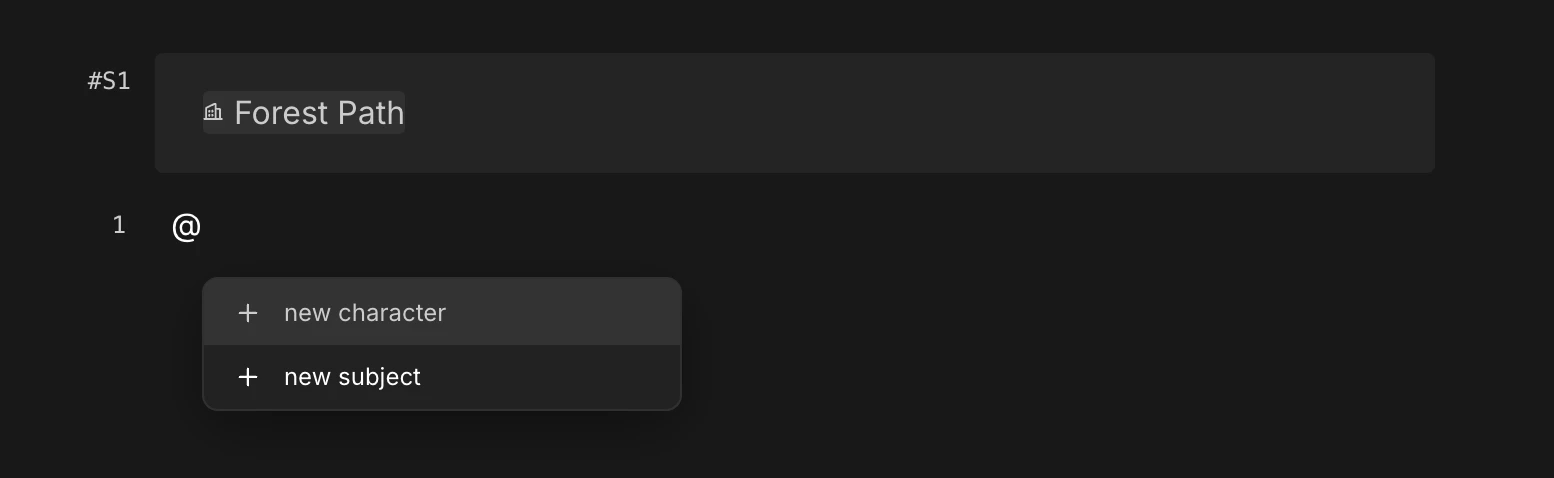

 You must pick an entry from the autocomplete to bind the asset. Plain `@name` text without a selection is treated as a regular word, and the next shot can render a different face.
## Backgrounds divide scenes
In film, a scene shifts when the set shifts. Cuts inside the same café belong to one scene. Cuts inside a car belong to the next. LTB applies the same rule — a `Background` block starts a new scene.
Press `/` on an empty line and pick `Background`. Name the place, press enter, and LTB registers it.
You must pick an entry from the autocomplete to bind the asset. Plain `@name` text without a selection is treated as a regular word, and the next shot can render a different face.
## Backgrounds divide scenes
In film, a scene shifts when the set shifts. Cuts inside the same café belong to one scene. Cuts inside a car belong to the next. LTB applies the same rule — a `Background` block starts a new scene.
Press `/` on an empty line and pick `Background`. Name the place, press enter, and LTB registers it.
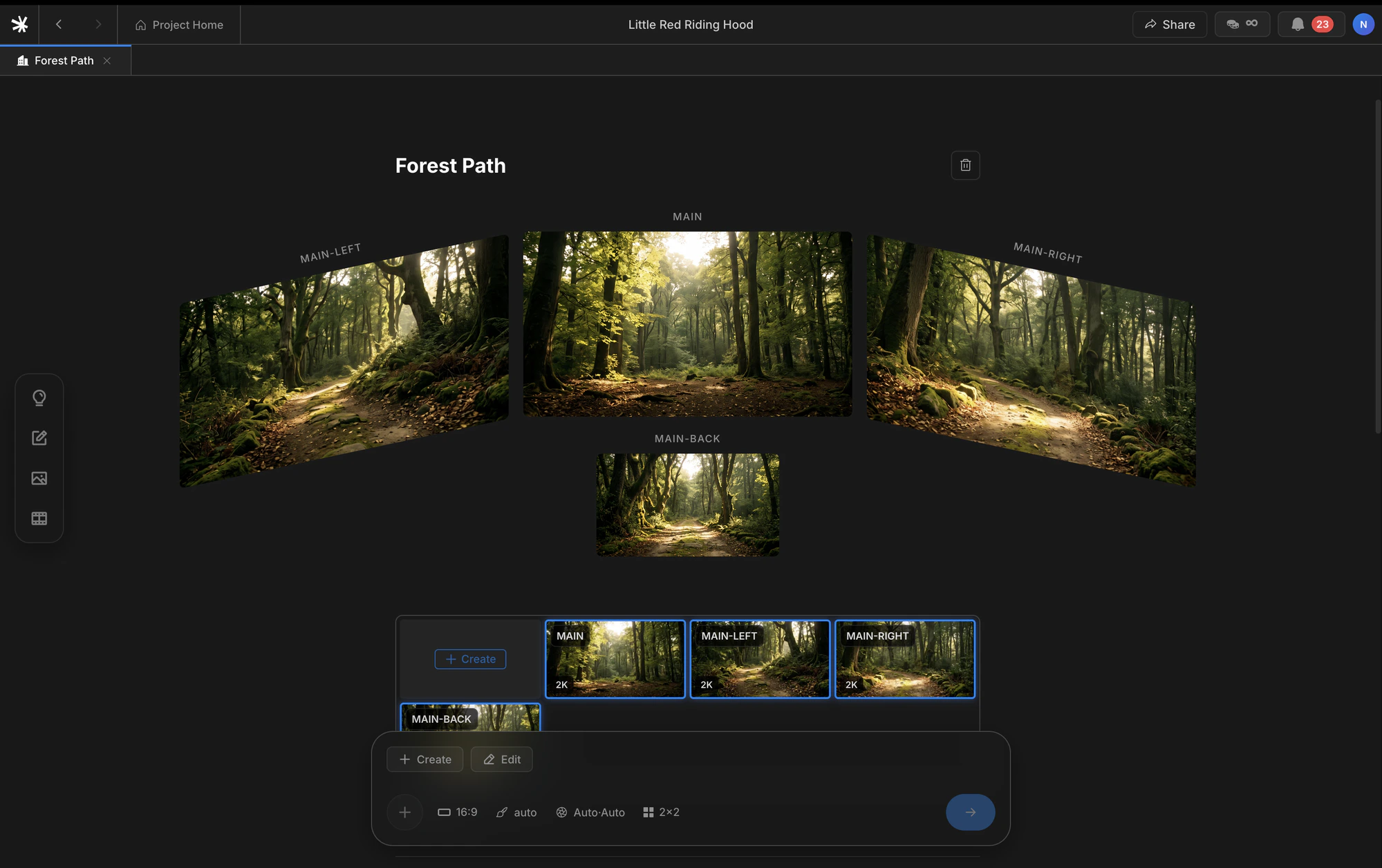
 A registered background auto-generates four camera views — front, left, right, and rear — so camera angles can vary inside one scene without drifting environment.

 ## Beats and addresses
A **beat** is one unit of staging — the smallest moment where an action changes. The term comes from Stanislavski, who taught actors to break a scene into beats and play each one as a discrete intention.
> One beat equals one shot.
Press enter to end a line and start a new beat. Insert a `Background` to start a new scene. Every line then carries an address — a pair of `(scene number, beat number)` — and that address travels with the line through Image and Video stages.
The vocabulary stays consistent across the product.
| Term | Meaning |
| --------- | ------------------------------------- |
| **Line** | One row in the editor |
| **Beat** | The unit of staging — one shot |
| **Scene** | A run of beats sharing one background |
## Beats and addresses
A **beat** is one unit of staging — the smallest moment where an action changes. The term comes from Stanislavski, who taught actors to break a scene into beats and play each one as a discrete intention.
> One beat equals one shot.
Press enter to end a line and start a new beat. Insert a `Background` to start a new scene. Every line then carries an address — a pair of `(scene number, beat number)` — and that address travels with the line through Image and Video stages.
The vocabulary stays consistent across the product.
| Term | Meaning |
| --------- | ------------------------------------- |
| **Line** | One row in the editor |
| **Beat** | The unit of staging — one shot |
| **Scene** | A run of beats sharing one background |
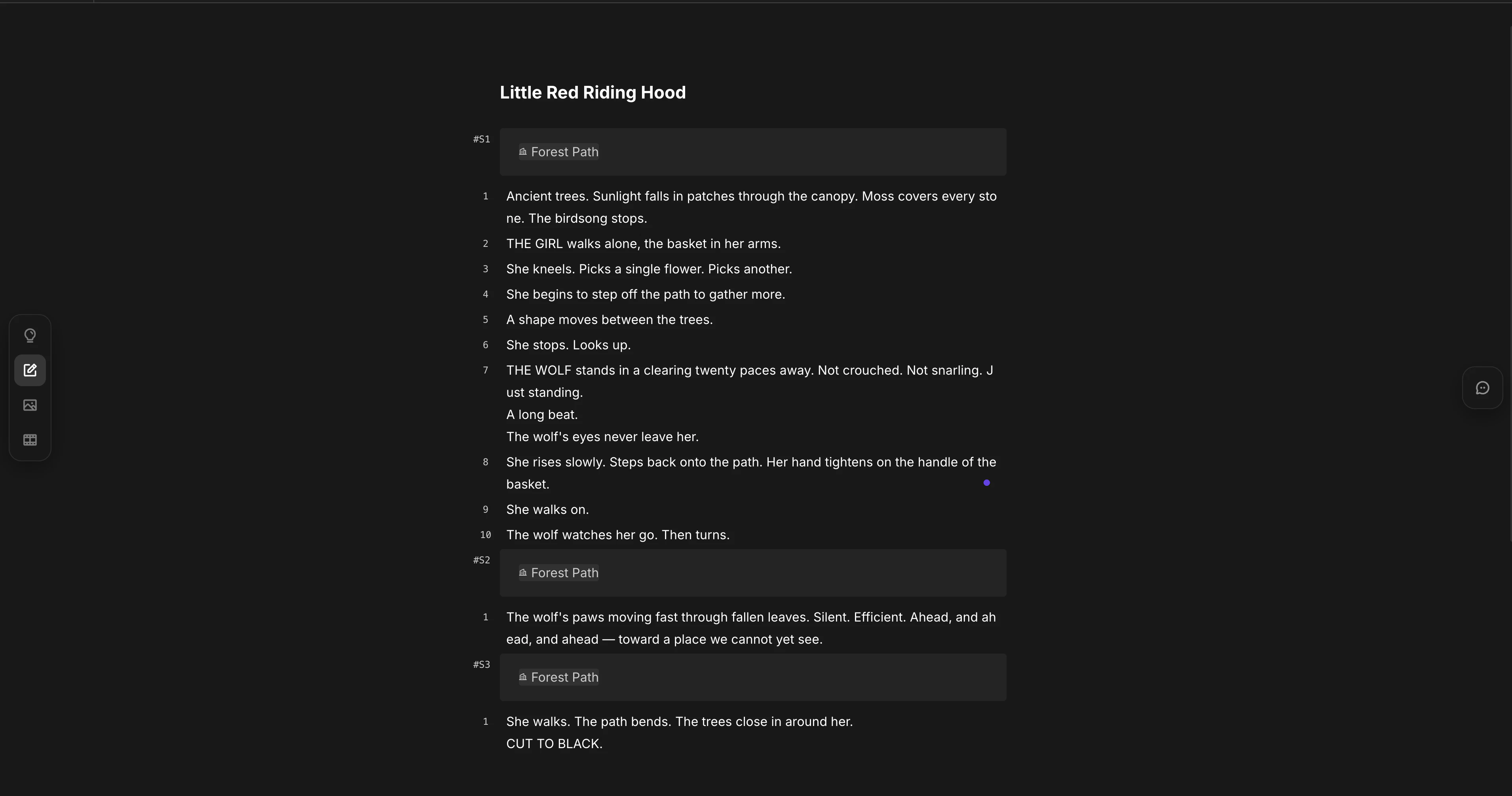 ## Four block types
A line carries one block. Most lines are `Text`. The other three serve specific roles.
| Block | Carries | Where it flows |
| -------------- | -------------------------------- | -------------------------------------------------- |
| **Text** | Action, description, mood | Becomes a shot image |
| **Dialogue** | A spoken line as `Speaker: body` | Becomes audio plus lip sync in video |
| **Background** | Place or set name | Defines the scene and feeds the location reference |
| **Divider** | Visual break only | Not used in generation |
`Text` is the default — start typing. For `Dialogue`, `Background`, or `Divider`, press `/` on an empty line and pick from the slash menu.
Dialogue is stored as `Speaker: body`. The colon is the field separator, not a chooser — type the speaker name, a colon, then the line.
## Korean and English
LTB sends line text to the model as written. There is no translation step. You can mix Korean and English inside the same project. Asset names should stay in one language to avoid duplicate registrations of the same character.
## Ingest
Free-form outlines can become a structured scenario in one step. Write whatever shape you have, then click `Make scenario format & Set assets` at the bottom-left of the editor.
Ingest performs four operations in one pass.
Free text becomes `Text`, `Dialogue`, `Background`, and `Divider` blocks.
People, props, and places get registered as Characters, Subjects, and Backgrounds — with metadata filled in.
`Background` blocks are inserted at every location shift.
Each beat receives a type label — intro, entrance, dialogue, close-up — that you can override.
### When to use it
Reach for Ingest when:
* You have a story in your head but no patience for hand-formatting.
* You want a quick first draft from a short synopsis.
* You want a generated starting point you can then revise by hand.
### Direct input vs Ingest
The shortest comparison fits in five rows.
| Aspect | Direct input | Ingest |
| ------------------ | ----------------------------------------- | ----------------------- |
| Starting format | Blocks, `@`, `/` from the first keystroke | Any free text |
| Asset registration | Manual via `@` | Automatic with metadata |
| Scene split | Manual via `Background` | Automatic |
| Beat typing | Auto, editable | Auto, editable |
| Control | Full | Auto draft, then edit |
Ingest output is fully editable. Treat it as a fast first draft — every line, asset, and scene break can still be revised with the direct-input tools above.
## Next
Turn beats into shots — Create, Cinematic Shots, Edit, Upscale.
Define tone and structure before writing scenes.
## Four block types
A line carries one block. Most lines are `Text`. The other three serve specific roles.
| Block | Carries | Where it flows |
| -------------- | -------------------------------- | -------------------------------------------------- |
| **Text** | Action, description, mood | Becomes a shot image |
| **Dialogue** | A spoken line as `Speaker: body` | Becomes audio plus lip sync in video |
| **Background** | Place or set name | Defines the scene and feeds the location reference |
| **Divider** | Visual break only | Not used in generation |
`Text` is the default — start typing. For `Dialogue`, `Background`, or `Divider`, press `/` on an empty line and pick from the slash menu.
Dialogue is stored as `Speaker: body`. The colon is the field separator, not a chooser — type the speaker name, a colon, then the line.
## Korean and English
LTB sends line text to the model as written. There is no translation step. You can mix Korean and English inside the same project. Asset names should stay in one language to avoid duplicate registrations of the same character.
## Ingest
Free-form outlines can become a structured scenario in one step. Write whatever shape you have, then click `Make scenario format & Set assets` at the bottom-left of the editor.
Ingest performs four operations in one pass.
Free text becomes `Text`, `Dialogue`, `Background`, and `Divider` blocks.
People, props, and places get registered as Characters, Subjects, and Backgrounds — with metadata filled in.
`Background` blocks are inserted at every location shift.
Each beat receives a type label — intro, entrance, dialogue, close-up — that you can override.
### When to use it
Reach for Ingest when:
* You have a story in your head but no patience for hand-formatting.
* You want a quick first draft from a short synopsis.
* You want a generated starting point you can then revise by hand.
### Direct input vs Ingest
The shortest comparison fits in five rows.
| Aspect | Direct input | Ingest |
| ------------------ | ----------------------------------------- | ----------------------- |
| Starting format | Blocks, `@`, `/` from the first keystroke | Any free text |
| Asset registration | Manual via `@` | Automatic with metadata |
| Scene split | Manual via `Background` | Automatic |
| Beat typing | Auto, editable | Auto, editable |
| Control | Full | Auto draft, then edit |
Ingest output is fully editable. Treat it as a fast first draft — every line, asset, and scene break can still be revised with the direct-input tools above.
## Next
Turn beats into shots — Create, Cinematic Shots, Edit, Upscale.
Define tone and structure before writing scenes.