> ## Documentation Index
> Fetch the complete documentation index at: https://docs.lettherebe.app/llms.txt
> Use this file to discover all available pages before exploring further.
# Edit
> Repaint a region of an existing shot, or bring in elements from up to three reference images. Precision changes without regenerating the whole frame.
Edit changes one part of a shot without rebuilding the rest. Mask a region and rewrite it, or attach up to **three reference images** to bring in a character, prop, or style.
 ## When to reach for it
* One region of a shot is wrong — expression, pose, an object in the wrong hand
* You want to bring a character, prop, or style from a different image into this frame
* You need to add or remove a small element without losing the rest of the composition
## How to enter
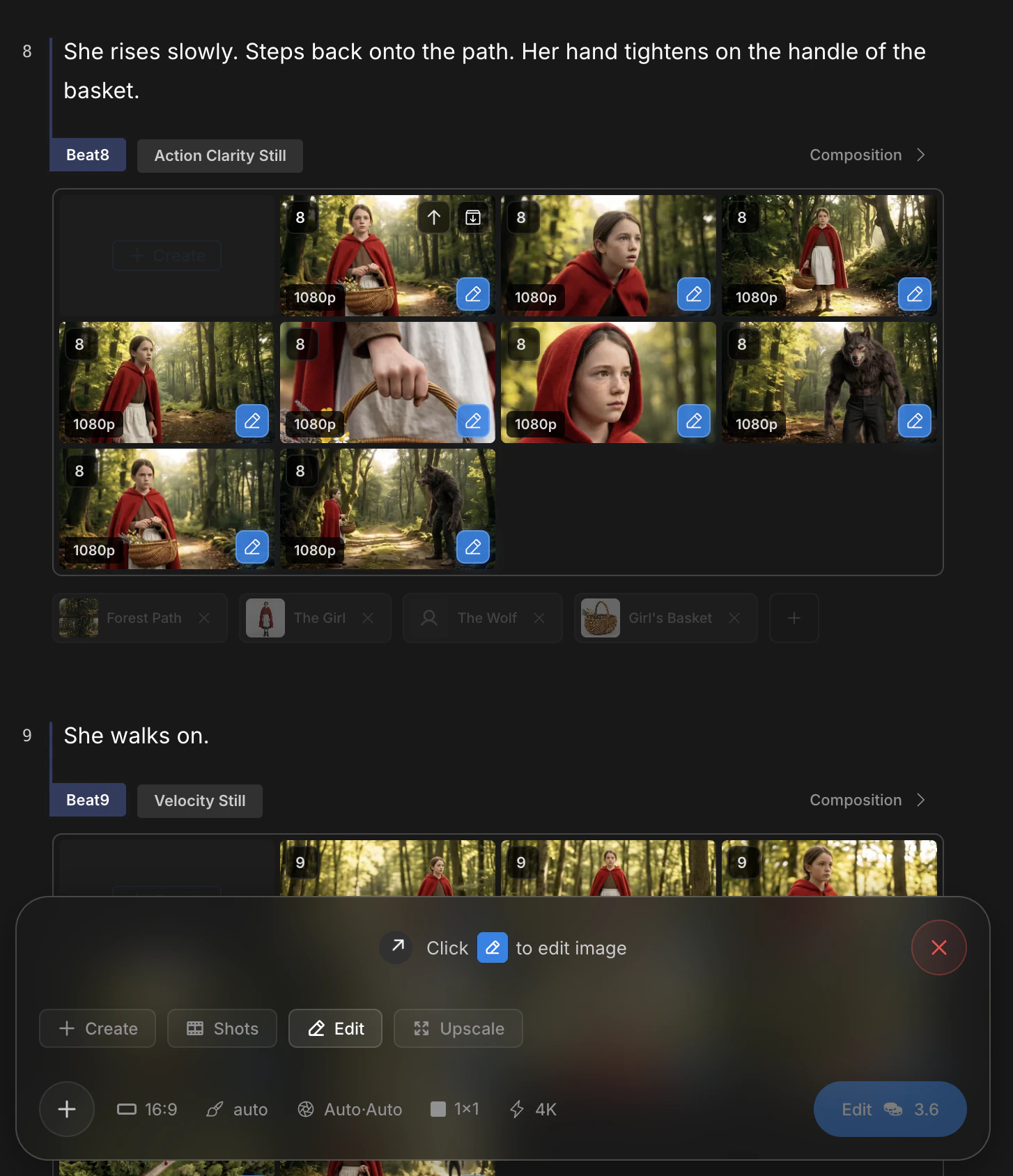
The three edit modes (Edit, Upscale, Cinematic Shots) share two entry paths. Full flow is covered in [Create — image editing](/image-mode/create#refine-before-animating).
* **Path 1** — Click the pencil icon in the bottom-right of any beat gallery tile, then pick `Edit`.
* **Path 2** — Click `Edit` in the mode row above the bottom panel, then select a source tile.
## Two inputs you can combine
Edit accepts two kinds of input. Use either alone, or both together.
| Input | What it does |
| -------------------- | ------------------------------------------------------------------------ |
| **Region mask** | Paints the area to repaint. Pixels outside the mask stay untouched. |
| **Reference images** | Up to three attached images — characters, props, or styles to draw from. |
The strongest results combine both. Mask the region, attach a reference, and write a prompt like "place the reference subject here, lit to match the scene".
## Region masking
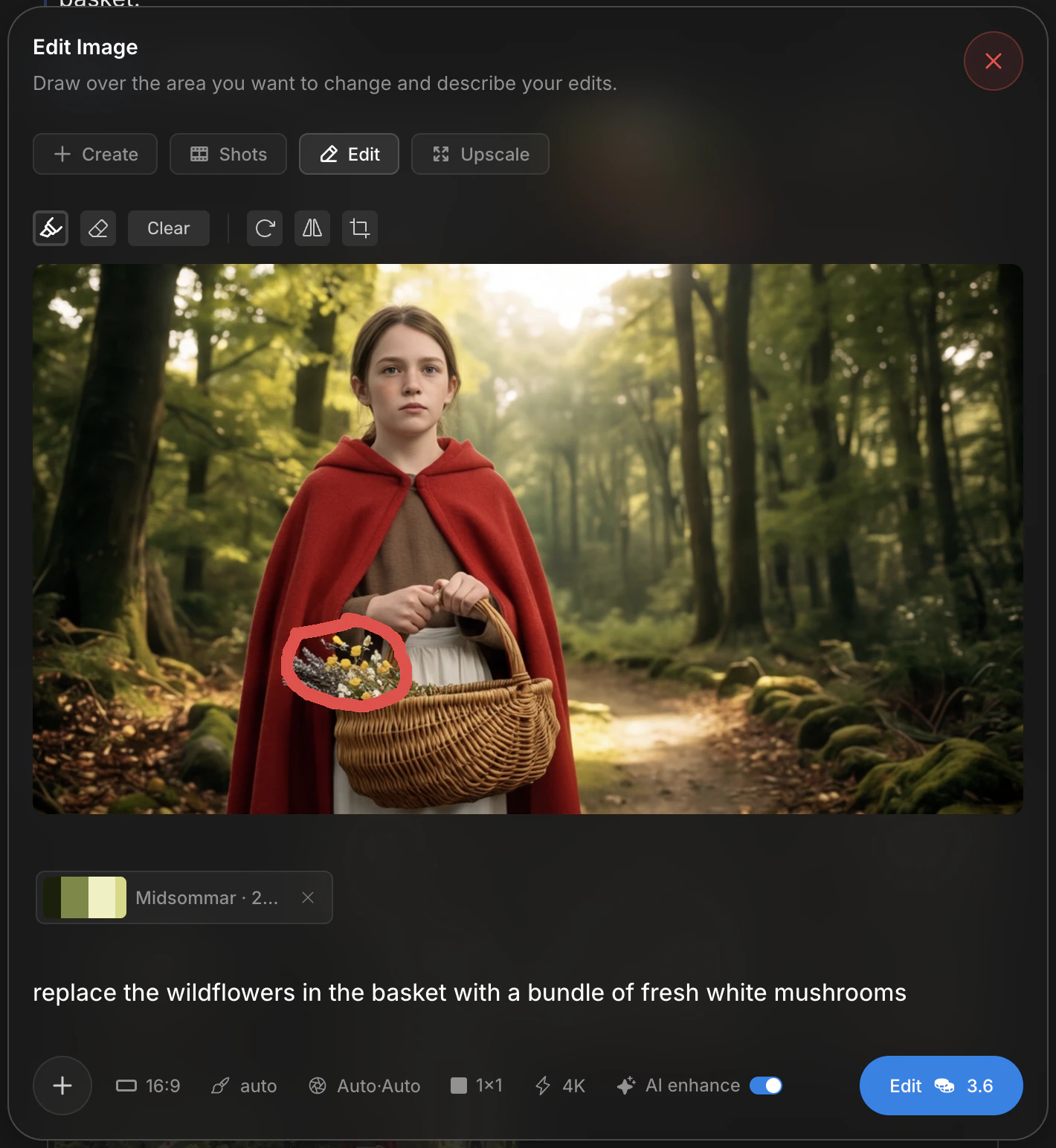
The canvas exposes three tools. Pick what fits the shape of the change.
| Tool | Behavior |
| -------- | -------------------------------------------------- |
| `Pen` | Free-form paint — soft brush over irregular shapes |
| `Eraser` | Removes mask strokes |
| `Crop` | Locks a rectangular region |
Write the prompt below the canvas. The masked region regenerates to match the prompt while preserving the rest of the image.
## When to reach for it
* One region of a shot is wrong — expression, pose, an object in the wrong hand
* You want to bring a character, prop, or style from a different image into this frame
* You need to add or remove a small element without losing the rest of the composition
## How to enter
The three edit modes (Edit, Upscale, Cinematic Shots) share two entry paths. Full flow is covered in [Create — image editing](/image-mode/create#refine-before-animating).
* **Path 1** — Click the pencil icon in the bottom-right of any beat gallery tile, then pick `Edit`.
* **Path 2** — Click `Edit` in the mode row above the bottom panel, then select a source tile.
## Two inputs you can combine
Edit accepts two kinds of input. Use either alone, or both together.
| Input | What it does |
| -------------------- | ------------------------------------------------------------------------ |
| **Region mask** | Paints the area to repaint. Pixels outside the mask stay untouched. |
| **Reference images** | Up to three attached images — characters, props, or styles to draw from. |
The strongest results combine both. Mask the region, attach a reference, and write a prompt like "place the reference subject here, lit to match the scene".
## Region masking
The canvas exposes three tools. Pick what fits the shape of the change.
| Tool | Behavior |
| -------- | -------------------------------------------------- |
| `Pen` | Free-form paint — soft brush over irregular shapes |
| `Eraser` | Removes mask strokes |
| `Crop` | Locks a rectangular region |
Write the prompt below the canvas. The masked region regenerates to match the prompt while preserving the rest of the image.
 ## Reference images
Attach up to **three** images alongside the prompt. References can come from the beat gallery, from another asset, or from an external upload.
## Reference images
Attach up to **three** images alongside the prompt. References can come from the beat gallery, from another asset, or from an external upload.
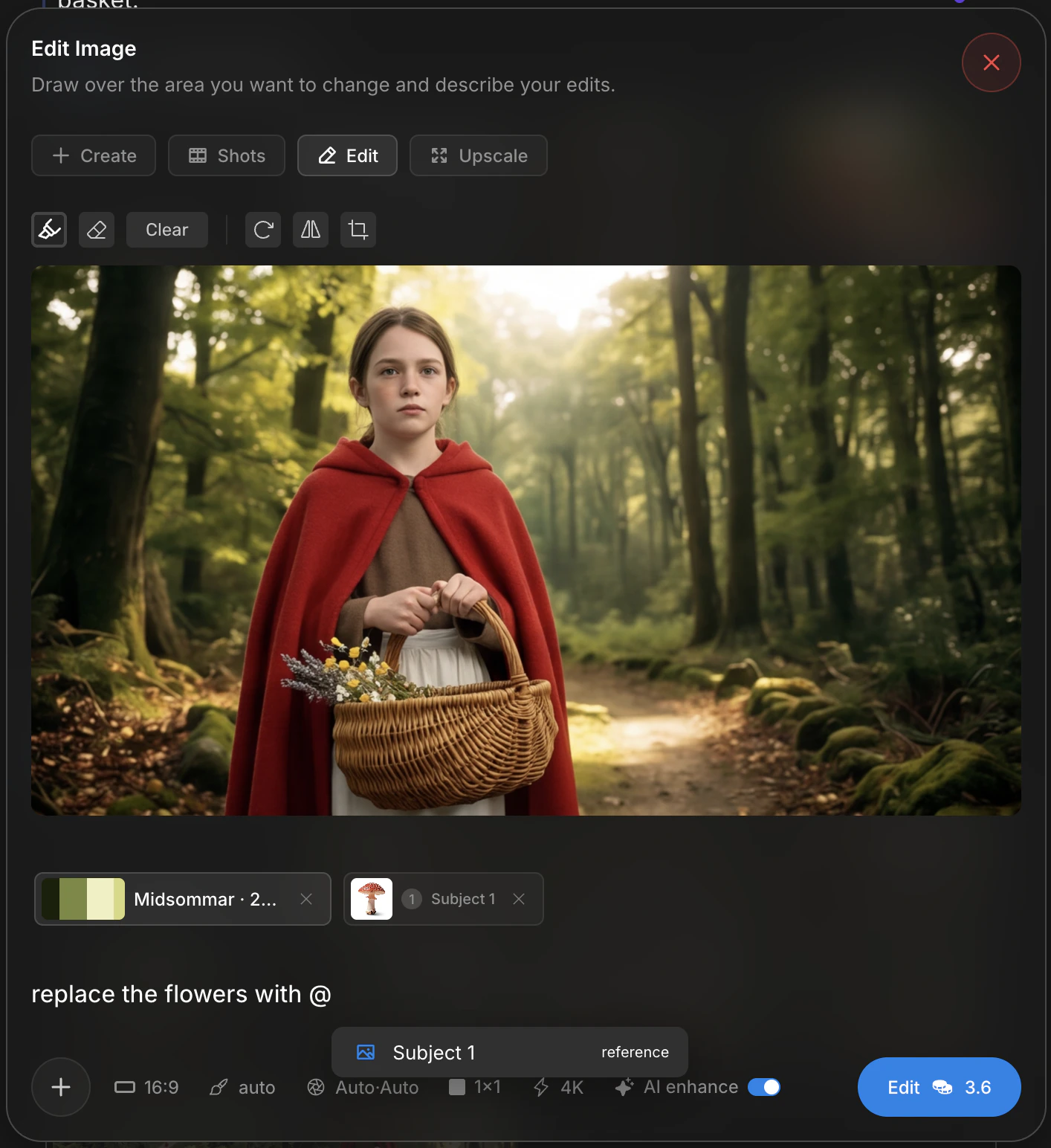 Inside the prompt itself, type `@` to mention a registered Character or Subject. The mention pulls in the canonical asset image without taking a reference slot.
## Camera and shot settings stay attached
Edit inherits the camera and shot panel from the source frame. The settings carry through so a repaint matches the original lens, depth, and framing.
| Panel | Controls |
| ---------- | ---------------------------------- |
| **Camera** | Body, lens, focal length, aperture |
| **Shot** | Shot size, angle, depth of field |
Adjust them when the repaint needs a different lens character — for example, a tighter close-up inside a wide.
## Results land in the beat gallery
Edited frames flow back into the same **beat gallery** as the source. Promote with `↑`, archive with `↓` — identical sort to Create.
```
Source shot
↓ Edit (mask + optional references)
Repainted shot
↓
Beat gallery
├─ ↑ promote → shot gallery → video first frame
└─ ↓ archive
```
## Choose the right tool
| Goal | Tool |
| ------------------------------------------- | ---------------------------------------------- |
| Change one region only | Region mask alone |
| Bring an element from another image | Reference image alone |
| Composite a reference into a masked region | Mask + reference together |
| Re-shoot the same beat at a different angle | [Cinematic Shots](/image-mode/cinematic-shots) |
| Push the same image to higher resolution | [Upscale](/image-mode/upscale) |
## Next
Nine alternative angles for the same beat.
Push the chosen shot to 4K before animating.
Inside the prompt itself, type `@` to mention a registered Character or Subject. The mention pulls in the canonical asset image without taking a reference slot.
## Camera and shot settings stay attached
Edit inherits the camera and shot panel from the source frame. The settings carry through so a repaint matches the original lens, depth, and framing.
| Panel | Controls |
| ---------- | ---------------------------------- |
| **Camera** | Body, lens, focal length, aperture |
| **Shot** | Shot size, angle, depth of field |
Adjust them when the repaint needs a different lens character — for example, a tighter close-up inside a wide.
## Results land in the beat gallery
Edited frames flow back into the same **beat gallery** as the source. Promote with `↑`, archive with `↓` — identical sort to Create.
```
Source shot
↓ Edit (mask + optional references)
Repainted shot
↓
Beat gallery
├─ ↑ promote → shot gallery → video first frame
└─ ↓ archive
```
## Choose the right tool
| Goal | Tool |
| ------------------------------------------- | ---------------------------------------------- |
| Change one region only | Region mask alone |
| Bring an element from another image | Reference image alone |
| Composite a reference into a masked region | Mask + reference together |
| Re-shoot the same beat at a different angle | [Cinematic Shots](/image-mode/cinematic-shots) |
| Push the same image to higher resolution | [Upscale](/image-mode/upscale) |
## Next
Nine alternative angles for the same beat.
Push the chosen shot to 4K before animating.