> ## Documentation Index
> Fetch the complete documentation index at: https://docs.lettherebe.app/llms.txt
> Use this file to discover all available pages before exploring further.
# Cinematic Shots
> Use Cinematic Shots in LTB to regenerate any promoted shot in nine alternative camera angles, framings, and compositions for the same story beat.
Cinematic Shots takes one existing shot and generates **nine alternative compositions of the same beat** — different angles, different framings, same story moment. Pick a beat-type intent and the model rebuilds the scene with that purpose.
 ## When to reach for it
* A shot you like, but you want to see the same beat from another angle
* A beat that needs **multiple cuts** in the final video — different framings of the same moment
* Early exploration when one shot is not enough range to choose from
## How to enter
The three edit modes (Edit, Upscale, Cinematic Shots) share two entry paths. Full flow is covered in [Create — image editing](/image-mode/create#refine-before-animating).
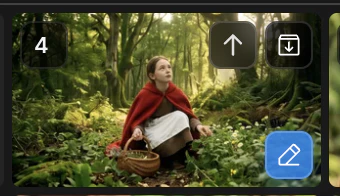
* **Path 1** — Click the pencil icon in the bottom-right of any beat gallery tile, then pick `Cinematic Shots`.
* **Path 2** — Click `Shots` in the mode row above the bottom panel, then select a source tile.
## Nine alternative compositions
The model rebuilds the same beat with **nine different camera angles and framings**. Same characters, same set, same story moment — only the cinematography varies. Pick the keepers, archive the rest.
You can also override the beat type before generating to shift the directorial intent. The full list of beat types is documented in [Scenario](/workflows/scenario).
## Results land in the beat gallery
The nine new images appear in the **same beat gallery** as the source shot. Compare side by side, then sort each one upward or downward.
```
Cinematic Shots — 9 new images
├─ ↑ promote → shot gallery → video first frame
└─ ↓ archive
```
## Other ways to refine the same shot
Cinematic Shots is one of three refinement paths. Each one takes the same input — a promoted shot — and produces a different kind of output.
| Path | What it changes |
| -------------------------------- | -------------------------------------------------------------- |
| [`Edit`](/image-mode/edit) | A specific region — inpaint or compose from references |
| [`Upscale`](/image-mode/upscale) | Resolution only — same image, sharper |
| **Cinematic Shots again** | Same source, different beat-type intent, nine new compositions |
## Next
Repaint a region or compose elements from up to three reference images.
Push a chosen shot to 4K before animating.
## When to reach for it
* A shot you like, but you want to see the same beat from another angle
* A beat that needs **multiple cuts** in the final video — different framings of the same moment
* Early exploration when one shot is not enough range to choose from
## How to enter
The three edit modes (Edit, Upscale, Cinematic Shots) share two entry paths. Full flow is covered in [Create — image editing](/image-mode/create#refine-before-animating).
* **Path 1** — Click the pencil icon in the bottom-right of any beat gallery tile, then pick `Cinematic Shots`.
* **Path 2** — Click `Shots` in the mode row above the bottom panel, then select a source tile.
## Nine alternative compositions
The model rebuilds the same beat with **nine different camera angles and framings**. Same characters, same set, same story moment — only the cinematography varies. Pick the keepers, archive the rest.
You can also override the beat type before generating to shift the directorial intent. The full list of beat types is documented in [Scenario](/workflows/scenario).
## Results land in the beat gallery
The nine new images appear in the **same beat gallery** as the source shot. Compare side by side, then sort each one upward or downward.
```
Cinematic Shots — 9 new images
├─ ↑ promote → shot gallery → video first frame
└─ ↓ archive
```
## Other ways to refine the same shot
Cinematic Shots is one of three refinement paths. Each one takes the same input — a promoted shot — and produces a different kind of output.
| Path | What it changes |
| -------------------------------- | -------------------------------------------------------------- |
| [`Edit`](/image-mode/edit) | A specific region — inpaint or compose from references |
| [`Upscale`](/image-mode/upscale) | Resolution only — same image, sharper |
| **Cinematic Shots again** | Same source, different beat-type intent, nine new compositions |
## Next
Repaint a region or compose elements from up to three reference images.
Push a chosen shot to 4K before animating.