> ## Documentation Index
> Fetch the complete documentation index at: https://docs.lettherebe.app/llms.txt
> Use this file to discover all available pages before exploring further.
# Quickstart
> Take one line of screenplay through every stage of LTB — beat, shot, video, and share — in about 10 minutes with this end-to-end tutorial.
Write one line. Generate one shot. Animate that shot into an 8-second video. This guide walks the shortest path through LTB and ends with a public share link. Defaults are enough — no configuration needed.
{/* TODO: embed finished 8-second sample (Kling 3.0 Pro, 1080p, autoplay/loop) */}
## What LTB produces
LTB treats each line of your screenplay as a **beat** — one unit of staging. Each beat gets one **shot image**. Each chosen shot becomes the **first frame of a video clip**.
```
Line → Beat → Shot → Video
```
The first frame controls tone, composition, and identity. Spend more effort on the shot than on the prompt — animation amplifies whatever the frame already shows.
## Before you start
You need three things ready. None of them require setup beyond signup.
* A verified account with dashboard access
* A free plan with `30 tokens/month` — roughly one `1080p` `8s` video
* Chrome, Edge, Safari, or Firefox on a current version
Total time runs about 10 minutes. Hands-on work is around 4 minutes; the rest is model wait time.
## Six steps
Click `New project` on the dashboard. Name it anything — you can rename it later.
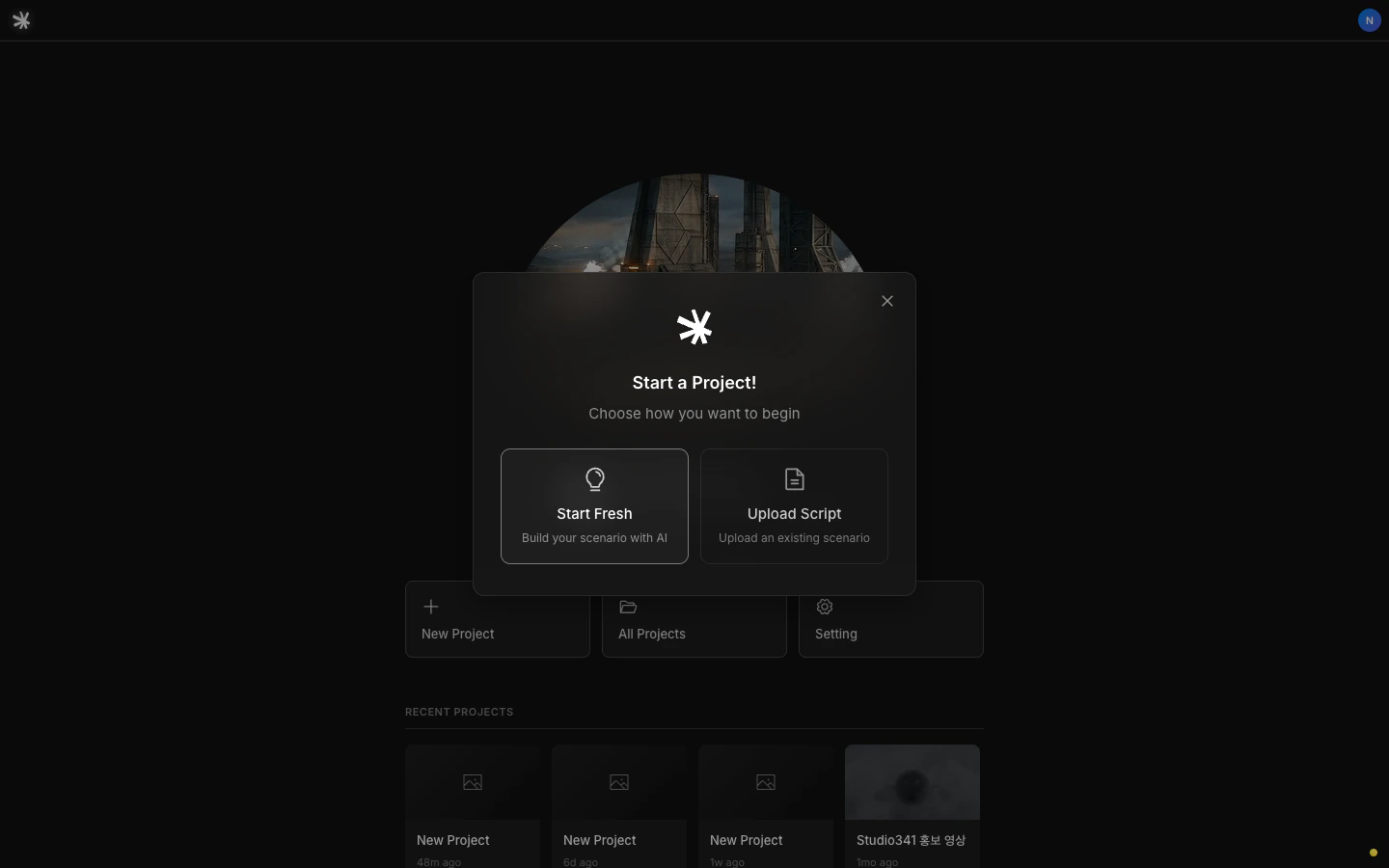 Project deletion is permanent. LTB has no trash or restore — once you confirm, the project and every shot inside it are gone.
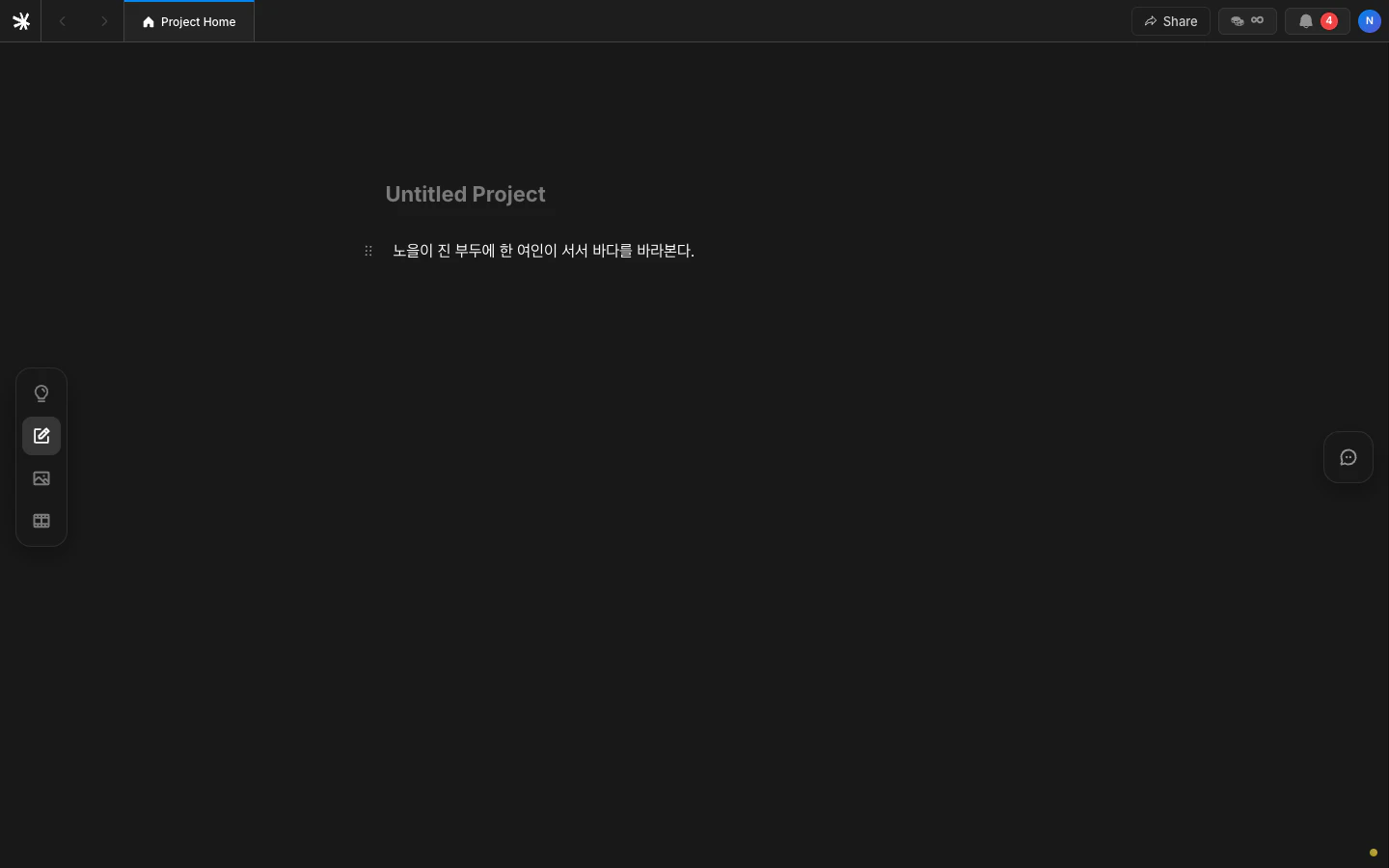
One line is enough to start.
```
A woman stands on the pier at sunset.
```
LTB reads this as one beat. One beat produces one shot. Add more lines later — each line becomes its own beat. Block syntax and `@` mentions are covered in [Scenario](/workflows/scenario).
Project deletion is permanent. LTB has no trash or restore — once you confirm, the project and every shot inside it are gone.
One line is enough to start.
```
A woman stands on the pier at sunset.
```
LTB reads this as one beat. One beat produces one shot. Add more lines later — each line becomes its own beat. Block syntax and `@` mentions are covered in [Scenario](/workflows/scenario).
 Type `@` inside a line to register or recall a **Character** or **Subject**. Press `/` and pick `Background` to define a place.
Skipping this step is fine for a single shot. Across multiple shots, the same face will drift unless you register the character first.
Type `@` inside a line to register or recall a **Character** or **Subject**. Press `/` and pick `Background` to define a place.
Skipping this step is fine for a single shot. Across multiple shots, the same face will drift unless you register the character first.
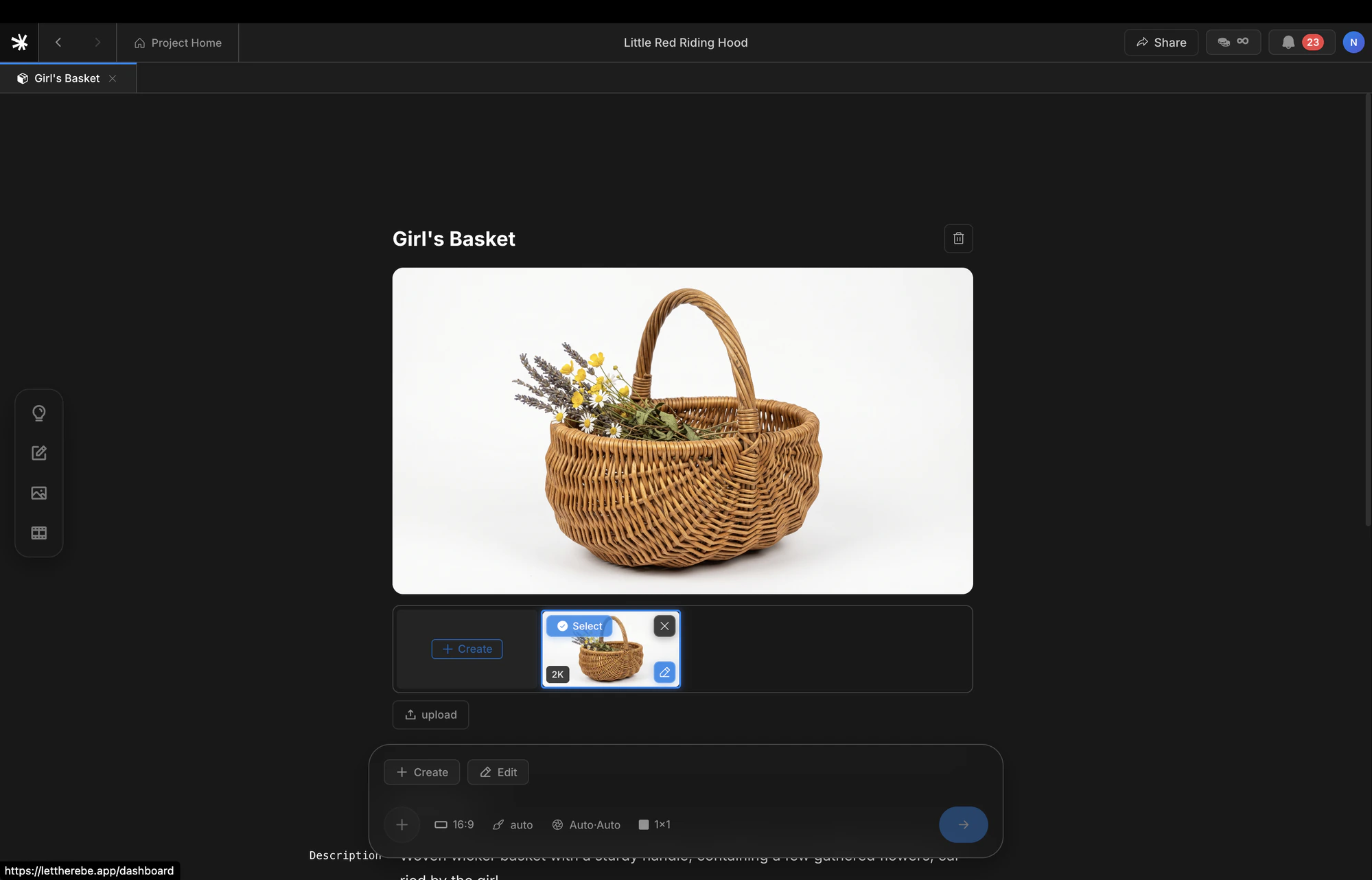 Full reference: [Assets](/assets/characters).
Select a beat. The generation panel opens at the bottom. Click `Create` to produce up to 9 candidate shots in one batch.
Full reference: [Assets](/assets/characters).
Select a beat. The generation panel opens at the bottom. Click `Create` to produce up to 9 candidate shots in one batch.
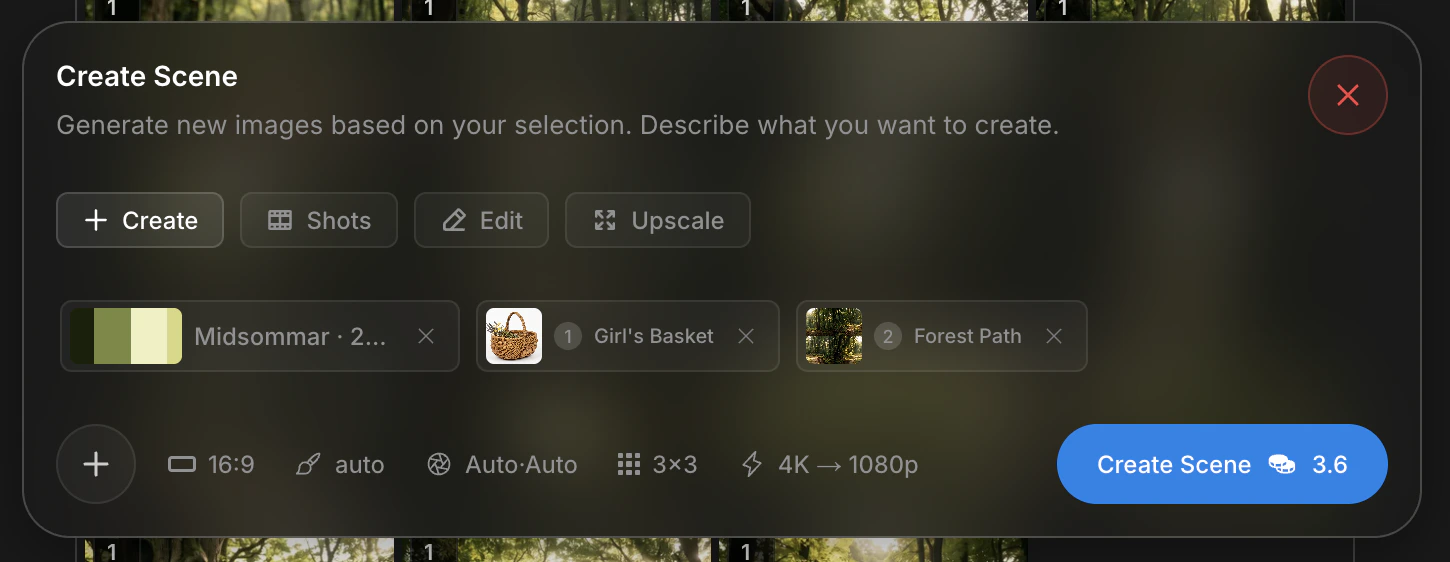 Candidates land in the **beat gallery**. Press `↑` on a shot to promote it to the **shot gallery**. Press `↓` to archive it.
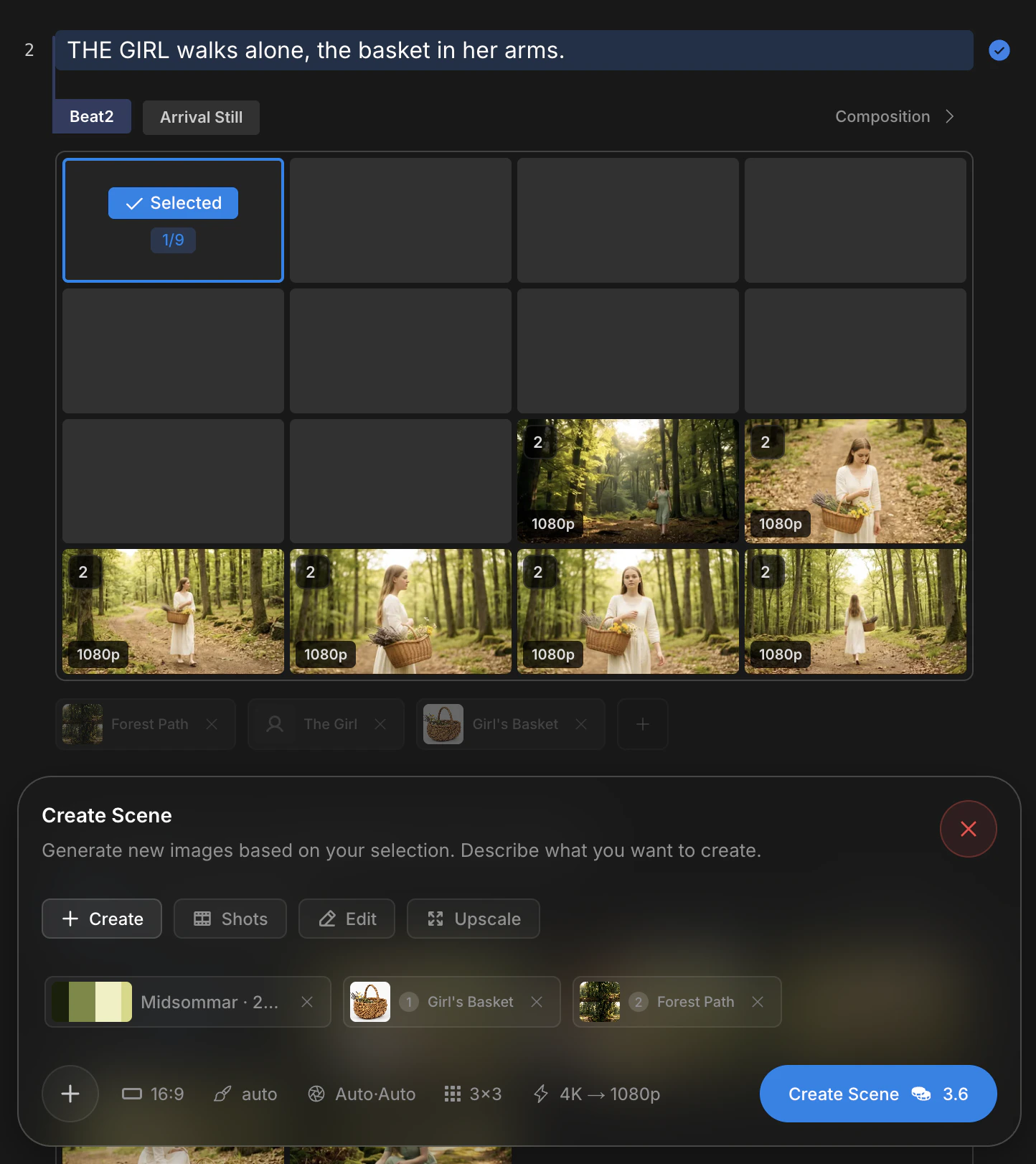 Promoted shots feed the video stage as first frames. Refine a promoted shot with [Edit, Upscale, or Cinematic Shots](/image-mode/create#refine-before-animating) before moving on.
Refine the first frame before animating. A weak frame yields a weak video, and video generation costs more tokens than a re-edit.
Open the video panel from a promoted shot. `Kling 3.0 Pro` runs by default. Generation typically takes 1–3 minutes.
The model takes the promoted shot as its first frame and fills in motion. Composition, lighting, and character identity carry over directly from the still.
Model comparisons live at [Video models](/models/video).
Click `Share` on the finished clip. LTB returns a public URL and an embed snippet. Recipients view without signing in.
Promoted shots feed the video stage as first frames. Refine a promoted shot with [Edit, Upscale, or Cinematic Shots](/image-mode/create#refine-before-animating) before moving on.
Refine the first frame before animating. A weak frame yields a weak video, and video generation costs more tokens than a re-edit.
Open the video panel from a promoted shot. `Kling 3.0 Pro` runs by default. Generation typically takes 1–3 minutes.
The model takes the promoted shot as its first frame and fills in motion. Composition, lighting, and character identity carry over directly from the still.
Model comparisons live at [Video models](/models/video).
Click `Share` on the finished clip. LTB returns a public URL and an embed snippet. Recipients view without signing in.
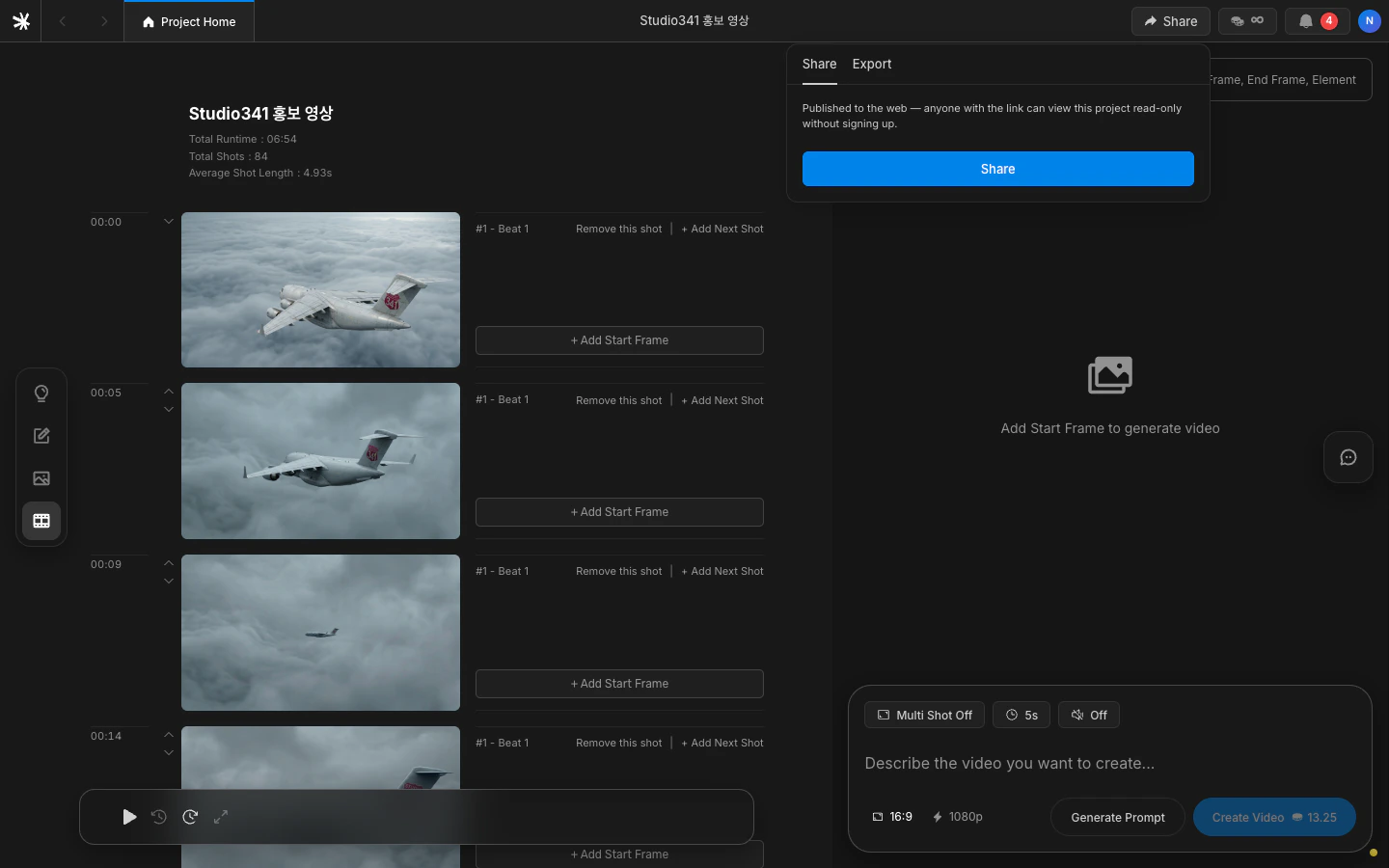 Share links stay live until you unpublish. There is no automatic expiry. To revoke, open the share modal again and toggle off.
## Where to go next
You finished the shortest path. Extend the work along any of these branches.
Define period, logline, and three acts before writing scenes.
Learn the four block types, beats, and scene division.
Use Create, Cinematic Shots, Edit, and Upscale.
Twelve models, side by side, with pricing.
## Common snags
Three issues come up most often on the first run.
**The `Create` button is gray.** The line is empty or unsaved. Type one character and the autosave activates the button.
**The same character looks different across shots.** Register the person as a Character asset, then reference them with `@name` in every line. Identity holds from the next generation onward.
**Video generation hangs past 3 minutes.** Open the bell icon in the header. A `failed` entry means the upstream model dropped — retry from the same shot. Failed runs refund tokens automatically.
## When you are stuck
Email [contact@lettherebe.app](mailto:contact@lettherebe.app) with your project URL. We reply within 24 hours.
Share links stay live until you unpublish. There is no automatic expiry. To revoke, open the share modal again and toggle off.
## Where to go next
You finished the shortest path. Extend the work along any of these branches.
Define period, logline, and three acts before writing scenes.
Learn the four block types, beats, and scene division.
Use Create, Cinematic Shots, Edit, and Upscale.
Twelve models, side by side, with pricing.
## Common snags
Three issues come up most often on the first run.
**The `Create` button is gray.** The line is empty or unsaved. Type one character and the autosave activates the button.
**The same character looks different across shots.** Register the person as a Character asset, then reference them with `@name` in every line. Identity holds from the next generation onward.
**Video generation hangs past 3 minutes.** Open the bell icon in the header. A `failed` entry means the upstream model dropped — retry from the same shot. Failed runs refund tokens automatically.
## When you are stuck
Email [contact@lettherebe.app](mailto:contact@lettherebe.app) with your project URL. We reply within 24 hours.