> ## Documentation Index
> Fetch the complete documentation index at: https://docs.lettherebe.app/llms.txt
> Use this file to discover all available pages before exploring further.
# Characters
> Register a character once in LTB to lock their face, body, and wardrobe across every shot, scene, and beat in your AI-generated film project.
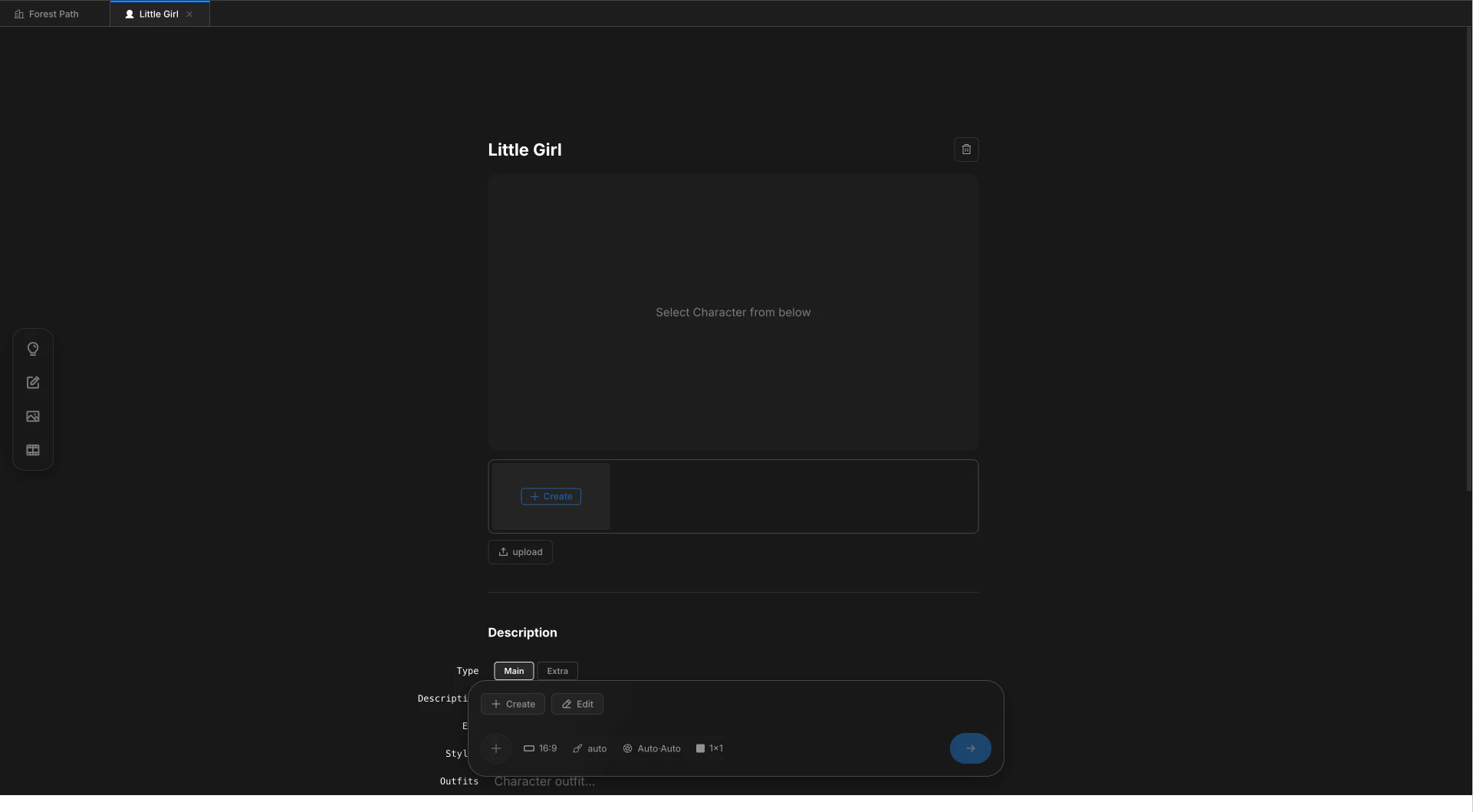
A Character is a person in your story. Upload one to three reference photos and LTB locks the same face and outfit into every shot that mentions them.
 ## Two ways to register
Register inline while writing, or set up Characters in advance.
Type `@` on any line. Pick `new character` from the autocomplete and name the person.
Open the Characters tab in the sidebar. Click `+ Create` to register before writing any lines.
The autocomplete entry binds the Character to the line. Plain `@name` text typed without a selection is treated as a regular word, and shots will render a different face every time.
## Which photos to upload
One photo is enough to start. Three photos cover camera moves without identity drift.
| Reference | What it locks |
| ------------- | ---------------------------- |
| **Front** | Face geometry and features |
| **Side** | Profile and hair silhouette |
| **Full body** | Build, posture, and wardrobe |
Upload one to three references per Character. Add or replace them later from the detail page.
## How references flow into shots
When a beat mentions a Character with `@name`, the registered references are passed into the image model along with the scene background. No prompt rewriting needed — the link travels with the line through Image and Video stages.
A Character can hold multiple outfits and styles. The line you write picks which outfit applies. Manage variants from the Character detail page.
## Characters versus Subjects and Backgrounds
Three asset types share the same goal — keeping cuts consistent — but each one registers differently.
| | Character | Subject | Background |
| --------------------- | ---------------- | ---------------- | -------------------------------------- |
| **What** | A person | A prop or object | A place |
| **Enters via** | `@` autocomplete | `@` autocomplete | `/` slash menu |
| **References needed** | 1–3 photos | 1 photo | 1 reference, four views auto-generated |
## Next
Register a recurring prop with a single reference.
Register a place. Four camera angles generated automatically.
## Two ways to register
Register inline while writing, or set up Characters in advance.
Type `@` on any line. Pick `new character` from the autocomplete and name the person.
Open the Characters tab in the sidebar. Click `+ Create` to register before writing any lines.
The autocomplete entry binds the Character to the line. Plain `@name` text typed without a selection is treated as a regular word, and shots will render a different face every time.
## Which photos to upload
One photo is enough to start. Three photos cover camera moves without identity drift.
| Reference | What it locks |
| ------------- | ---------------------------- |
| **Front** | Face geometry and features |
| **Side** | Profile and hair silhouette |
| **Full body** | Build, posture, and wardrobe |
Upload one to three references per Character. Add or replace them later from the detail page.
## How references flow into shots
When a beat mentions a Character with `@name`, the registered references are passed into the image model along with the scene background. No prompt rewriting needed — the link travels with the line through Image and Video stages.
A Character can hold multiple outfits and styles. The line you write picks which outfit applies. Manage variants from the Character detail page.
## Characters versus Subjects and Backgrounds
Three asset types share the same goal — keeping cuts consistent — but each one registers differently.
| | Character | Subject | Background |
| --------------------- | ---------------- | ---------------- | -------------------------------------- |
| **What** | A person | A prop or object | A place |
| **Enters via** | `@` autocomplete | `@` autocomplete | `/` slash menu |
| **References needed** | 1–3 photos | 1 photo | 1 reference, four views auto-generated |
## Next
Register a recurring prop with a single reference.
Register a place. Four camera angles generated automatically.